Frequently Asked Questions
Collection of frequently asked questions about Casambi Pro.
Browse the questions below or use the Table of Contents on the right to jump to a specific topic.
What is Casambi Pro?
Casambi Pro is a new set of tools to create wireless Casambi lighting networks.
The overall vision for the Casambi Pro concept is to provide lighting professionals a modern, scalable set of tools with which they can efficiently configure and commission Casambi-enabled lighting installations. The main goal is to make the lighting scenario configuration and installation commissioning work more visual, agile, and straightforward.
The main target users for the first Casambi Pro version are the lighting configuration specifiers and commissioning engineers. Please note, that the initial versions are not targeted to other roles or tasks, including maintenance or final end users of the installations.
Please also note, that there are differences between the Casambi Pro for Windows and the for iPad. The Pro for Windows focuses on creating projects and configurations, and the iOS version is used in the commissioning phase for pairing and unpairing of Casambi enabled Bluetooth devices.
Does the Casambi Pro have all features of the Casambi App?
No.
Casambi Pro is focused to help primarily in medium to large size projects where a floor plan helps in creating the configuration design. Thus, more features will be added to Casambi Pro to help this use case, instead of replicating all features of the current Casambi App.
The Casambi App will co-exist as the other option to configure Casambi networks.
Casambi Pro development philosophy is to develop first a Minimum Viable Product (MVP) with just core set of features, and add new features based on feedback and real needs. It may be that some of the current Casambi App features will never be added to Casambi Pro. On the other hand, the Pro will have new features which are not going to be in the Casambi App.
What firmware does the Casambi Pro support?
Casambi Pro supports the standard Casambi Evolution firmware.
Classic firmware is not supported.
Read more about different firmware versions.
Can I pair devices into networks with Casambi Pro?
Yes, but initially only with the Casambi Pro for iPad version and only to networks that are created with Casambi Pro. Thus, with Casambi Pro, it is not possible to pair device into networks created with Casambi App and vice versa.
In Casambi Pro, networks are first created in Casambi Pro for Windows in the offline configuration phase as virtual placeholders. The placeholder networks will be converted to real networks in iPad when pairing real devices to the project.
In Casambi Pro for Windows:
- Spaces with groups and controllers are created added to the project
- Network placeholder(s) is created
- Each space is attached to a network. This can be done in each space's properties.
- Project is saved
In Casambi Pro for iPad:
- Same project is opened, and user can browse the project and find places he/she wants to pair devices to. The network placeholders can be seen in the Networks pane
- Now user can pair luminaires, switches or sensors from the Nearby Devices list to the spaces and groups.
- When a device is paired, the related network placeholder is automatically converted to a real network.
Does Casambi Pro support EnOcean devices?
Yes.
EnOcean support requires that the device used for pairing has the NFC chip, which the iPad does not have. Thus, the EnOcean pairing capability is available only when the Casambi Pro is used with an iPhone.
For detailed information about supported devices, see the Casambi Pro Device Support page.
What are the elements in a Casambi Pro project?
A Casambi Pro project consists of following elements:
- Layouts (floor plans)
- Spaces and space templates
- Luminaire groups
- Controllers (switches, sensors and schedules)
- Scenes
- Circadian profiles
- Casambi Cloud Gateways
- Networks
For detailed information about projects, see the Casambi Pro Projects page in the Casambi Pro User Guide.
Does Casambi Pro support working in offline mode?
Both Casambi Pro for Windows and Casambi Pro for iPad always require Internet connection.
Is it possible to import floorplan images in vector formats like PDF?
Layout images (floor plans) can be imported to Casambi Pro in PNG, JPG and PDF formats. Vector formats like AI, DWG, DXF or SVG are not supported.
- There is no limit to the size of the PNG/JPG file, but it is good to note that if the images are extremely large (several megabytes per image), it will affect the performance of the application.
- It is recommended to crop large images to contain only the essential contents that is needed to be displayed in the background of a layout.
- Importing large PDF vector images may take several minutes, during which the app UI may appear to be frozen. -If importing a PDF is too slow or unreliable, it is recommended to convert it first to a PNG and use that in the background.
The PDF import feature is available from June 2024 release onwards.
Is it possible to export documentation from Casambi Pro?
Yes, documentation export feature is possible with Casambi Pro for Windows. A project report can be exported in PDF and DOCX (MS Word) file formats.
This feature is included in Casambi Pro for Windows from February 2024 release onwards (version 35.8.1 and newer).
Learn more about exporting an installation report in the Casambi Pro User Guide.
How many layouts can there be in one project?
Amount of layouts, spaces, groups, controls or networks is not restricted in the application. However, it is good to note that having a very large amount of elements in one project may affect the performance of the application.
Can I import data from other applications into Casambi Pro?
Currently importing data from other application is not supported.
Can existing Casambi projects be converted to Casambi Pro projects?
Due to fundamental differences between Casambi App's and Casambi Pro's data architecture, converting old Casambi App projects to Casambi Pro is not possible.
Can Casambi Pro connect to building management systems?
Currently no, but this kind of functionality is considered at a later phase.
Can Casambi Pro display the live status of the networks and their devices?
Yes, Casambi Pro for iOS can show network devices' current statuses if user's iOS device is within the network's Bluetooth range.
To see device's current status:
- Open a network in Casambi Pro for iOS
- Select a device from the layout and open the property pane on the right side of the screen. When the device is selected, its current status can be seen in the properties.
Alternatively, the device details can be accessed by selecting a device in the Nearby Devices list.
That Casambi Pro for Windows cannot display network devices' current statuses.
This feature is available from Casambi Pro for iOS May 2025 version onwards.
Does Casambi Pro support gateway?
Casambi Pro supports the Casambi Cloud Gateway.
This feature is available from Casambi Pro February 2024 version onwards.
For detailed information about supported devices, see the Casambi Pro Device Support page.
How can i refresh different lists in iPad?
On Casambi Pro for iPad, there are several lists in the user interface which the user may want to refresh:
- List of projects in the Backstage view
- Project contents in the main workspace's Project Explorer pane
- Networks in the network pane
- Nearby devices list on the right side of the main workspace.
All these lists can be refreshed by dragging down the list by finger.
A spinner icon is displayed when the list is being refreshed.
Is there a maximum number of layouts per project?
The number of layouts is not limited. However, having a big number of large layouts may affect performance of the app.
Is it possible to make sub spaces or sub groups?
A space can contain only controllers and luminaire groups, and it is not possible to create a hierarchically nested space inside a parent space. However, spaces can overlap in the layout so that they appear to be stacked on top of each other.
Similarly, a luminaire group cannot have another group inside it, but different groups can overlap each other in the layout.
Can a luminaire be part of several luminaire groups?
A luminaire can and it must be part of one luminaire group. It cannot be placed into multiple luminaire groups.
Is it possible to control many groups with one sensor?
Controlling several luminaire groups with one sensor is possible by using scenes.
For example, if there are two luminaire groups and one sensor in a space, you can set different dimming levels for both groups by adjusting them in the scene table with following steps:
- Create a space with two groups and one sensor
- Add a scene with a default dimming level in the scene table
- For the created scene, set different dimming levels for different groups
- Configure the sensor to trigger the scene.
Is it possible to share a project to another person?
Yes, with Casambi Pro for Windows.
A user with the Owner role can add new members with Owner or Editor roles to the project they have created.
New project members can be added by sending an invitation from Casambi Pro for Windows.
The invitees will get a code which they can use to join the project in their copy of Casambi Pro for Windows.
Is it possible to do the commissioning with a PC?
Commissioning with the Casambi Pro for Windows is not yet possible, initially the iPad version must be used for pairing and unpairing of devices. However, this functionality will be considered in later versions of Casambi Pro for Windows.
How do you decide how many networks to have?
One Casambi Evolution network can have up to 250 devices (depending on the selected network mode, see table below).
When a lighting system design is created in Casambi Pro, user should add estimated number of luminaires for each luminaire group. This information together with number of controllers will give an estimate how many devices there will be in the planned project.
Then, the created project structure, device amount estimation and practical needs can be used to determine how many and what type of networks would be needed in one Casambi Pro project.
| NETWORK MODE | SPEED | DESCRIPTION |
|---|---|---|
| Better performance | 2 Mbit/s | Optimised for larger indoor networks with increased data traffic. Reduced communication range compared to Balanced network mode. |
| Balanced | 1 Mbit/s | Optimised for small to mid-size indoor networks (recommended 125 nodes max.) with moderate data traffic. |
| Long Range (BETA) | 0.5 Mbit/s | Optimised for small to mid-size outdoor networks (recommended 60 nodes max.) with low data traffic. Increased communication range compared to Balanced network mode. Long range compatible devices only. |
What are the behaviour options for switch functionality?
Initially a switch will have three behaviour options:
- Toggle a group
- Toggle a scene (includes option to prevent dimming by long press on a button)
- Toggle a network
- Resume automation (group)
- Resume automation (network)
More behaviour options will be added in future iterations of the Casambi Pro.
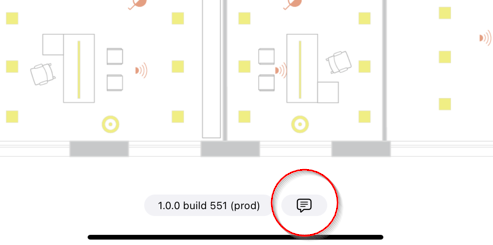
Why is the feedback button not visible on iPad?
If the feedback button is not shown next to the Casambi Pro version number at the bottom of the iPad screen, your iPad has not been set up to send emails.
When the iPad email messaging is set from the system settings, the feedback button is shown also in the Casambi Pro.
You can also send feedback directly from your email application, to the address pro.feedback@casambi.com.
What is Casambi Pro tool used for?
Casambi Pro is a tool set for Pre-configuring and commissioning of primarily medium to large scale, mainly automated Casambi based wireless lighting solutions. Core idea is to be able to create configurations in advance, without access to real devices and networks at the design time, and then execute commissioning quickly on-site.
Casambi Pro consists of two tools:
-
Casambi Pro for Windows is the tool for creating projects and designing configurations for wireless lighting solutions off-site.
-
Casambi Pro for iPad is the tool to be used on-site, for pairing real devices to the designed networks.
What makes the Casambi Pro different from the current Casambi App?
With Casambi Pro, networks and control structures can be configured off-site with a PC tool, without access to real networks or devices. Also, the Casambi Pro provides a visualisation of the spaces and device positions by using floor plan images.
Thus, key differences between the tools are:
- With Casambi Pro, it is possible to create configurations off-site with a PC tool
- Casambi Pro is based on hierarchy/organization of layouts (floorplans), spaces, lighting groups, controllers and scenes.
- Compared with the Casambi App, the Casambi Pro has initially limited feature set, optimized to large and simple projects.
To whom is the Casambi Pro targeted for?
Casambi Pro is intended for any lighting professional who works with preconfiguration and commissioning of Casambi enabled systems. It does not replace the current Casambi App, but offers an alternative option for creating and managing large projects and projects with many repeating structures and simple control needs.
Is Casambi Pro replacing the Casambi App?
Casambi Pro does not replace current Casambi App. Casambi Pro provides a new, alternative way for creating and managing Casambi enabled lighting systems. It is mostly targeted for large, automated lighting systems with only a little need for manual control.
Which platforms does the Casambi Pro run on?
Casambi Pro runs on a Windows PC (Windows 10 or newer) and in an Apple iOS devices. Windows version is used for planning and configuration, and iPad for commissioning.
On iOS, the Casambi Pro can be installed on any device running iPadOS or iOS version 16.0 or newer. Generally, Pro supports the current iOS version plus two older iOS generations. OS versions which are older than that are not supported.
For iOS devices (iPads and iPhones), following devices are supported as of May 2025
- iPad Pro 3rd generation or higher
- iPad Mini 5th generation or higher (not optimal due to the small screen size)
- iPad air 3rd generation or higher
- iPad 7th generation or higher
Supported iPhone devices, needed for NFC based EnOcean device pairing:
- iPhone 11 or higher
Notice: There is no Casambi Pro versions for Android phones or tablets, or for Mac computers. However, it is possible to run Casambi Pro for Windows on a Mac if there is a Windows operating system installed on a virtual machine like Parallels.
Will there be a Casambi Pro for Mac computers?
There is no native Casambi Pro application version available for Apple MacOS computers.
If a Mac computer has Windows operating systems installed on a virtual machine (e.g. Parallels), the Casambi Pro can be run on that.
Will there be a Casambi Pro for Android devices?
No. This is to be considered later in the future if there is a lot of demand for Android support in the market.
How much does Casambi Pro cost for the users?
Casambi Pro is free.
Can I use the Casambi App to control networks created with Casambi Pro?
If end user control is needed, this can be done. However, currently the user experience is not optimal in the Casambi App, due to fundamental differences between Casambi App and Casambi Pro architectures.
A network created with Casambi Pro can be opened in Casambi App for controlling. However, changing network configuration is not possible with the Casambi App. Thus, Pro network configurations and behaviours must always be edited with Casambi Pro.
Can I use Casambi app UI to control a Pro network?
If end user control is needed, this can be done. However, currently the user experience is not optimal in the Casambi App, due to fundamental differences between Casambi App and Casambi Pro architectures.
Networks created with Casambi Pro are meant to be configured and controlled by either Casambi Pro Windows App or iOS App.
It is not advisable to use normal Casambi App to configure a Pro network.
However, in the case that an end user would require application control over the Pro network, the standard Casambi App can be used. This must be configured first within Pro iOS App.
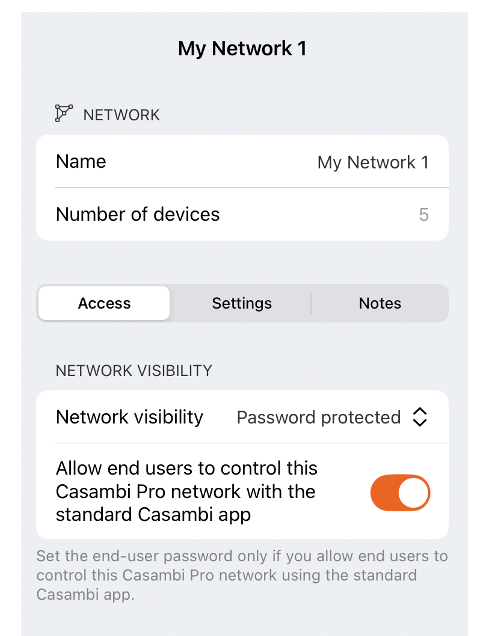
The network's visibility must be set to "Password protected" in the network's configuration and then activate option "Allow end users to control...".
Enabling this option will ask to create a password, which should be shared with the end user. Using that password and the admin e-mail attached to the Pro network, the end user will be able to control the Pro network (with User rights).
Can I change Casambi Pro network configurations with the Casambi App?
No.
With the Casambi App, it is not possible to change configurations of networks created with Casambi Pro. Any changes to the configuration must be done with Casambi Pro tools.
Can I use Casambi Pro to control networks created with Casambi App?
No.
This is due to fact that networks created with the Casambi App have different object architecture than what is used in Casambi Pro.
Will Casambi Pro be localized into other languages than English?
Currently Casambi Pro is available only in English.
In future, other languages may be considered.
Is Casambi Pro suitable for outdoor projects?
Yes, Casambi Pro can be used in both indoor and outdoor projects.
Is it possible to create a copy of a Casambi Pro project?
In Casambi Pro for Windows, it is possible to create a project duplicate.
Projects can be duplicated with Casambi Pro for Windows. When a project is open and it has no unsaved changes, it can be duplicated by pressing the Duplicate Project button in the Project Details view. The duplication will create a copy of the project with its structures, elements and configuration settings.
Networks with real devices will not be duplicated. However, controllers (sensors and switches) and connector devices (gateways) will be replaced with placeholder objects in the created project duplicate.
Learn more about duplicating projects.
How to check App version for Casambi Pro?
In the Windows PC Pro app version:
The left side of the bottom bar displays the app version number, together with last save time and transient status information e.g. while saving the project
In iOS Pro app version:
Bottom center, when the app is started.
Is the Casambi DALI Controller supported?
Yes, the Casambi DALI Controller (the Salvador product family) is supported by Casambi Pro, from January 2025 release onwards.
See more information here.
For detailed information about supported devices, see the Casambi Pro Device Support page.
I paired a device but it is not shown in the layout
Sometimes a device is paired but it is not visible in the layout or project explorer list. In this case, the paired device is part of the network, but the project did not recognize it correctly and therefore does not display it in the project (it is a "ghost device").
If this happens, follow these steps to correct the situation:
- Open the nearby devices list
- Locate the problematic device from the list. This can be done for example by using list filters, studying the network details next to each device, and using the identify command.
- When correct luminaire was found, tap the device row in the nearby devices list.
- Unpair the luminaire using the Unpair button in the device details.
- Pair the luminaire again.
What kind of iPad or iPhone do i need to run Casambi Pro?
Casambi Pro can be installed on any iOS device running iPadOS or iOS version 16.0 or newer. Generally, Pro supports current iOS version plus two older iOS generations. OS versions which are older than that are not supported.
For iOS devices (iPads and iPhones), following devices are supported as of December 2025
- iPad Pro 3rd generation or higher
- iPad Mini 5th generation or higher (not optimal due to the small screen size)
- iPad air 3rd generation or higher
- iPad 7th generation or higher
Supported iPhone devices, needed for NFC based EnOcean device pairing:
- iPhone 11 or higher