Installation
- Windows
- iOS
System requirements
Casambi Pro for Windows
- Casambi Pro can be run on Windows PC computer running Windows 11 operating system. The minimum supported Windows 11 version is 25H2.
- Minimum requirement of RAM memory is 16 GB. For optimal performance, we recommend to have 32 GB.
- Native installation of Casambi Pro on MacOS or Linux computers is not supported. However, Casambi Pro can be run on a Mac PC via a virtual machine (such as Parallels or VMware) running a supported version of Microsoft Windows.
Installation process
Follow these steps to install Casambi Pro on your Windows 11:
- Download the Casambi Pro setup file from the Casambi Pro web page (casambi.com/pro).
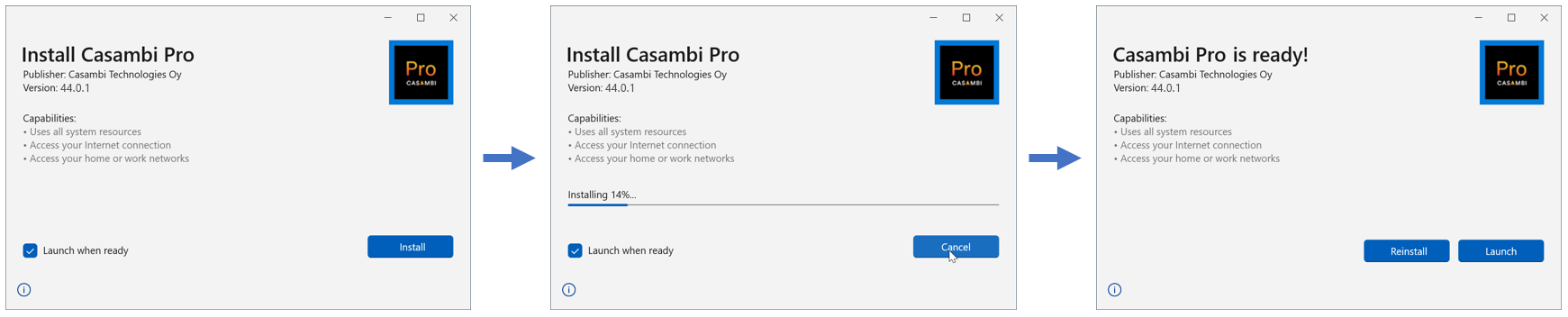
- Once the download is finished, run the Casambi Pro setup file → The setup wizard will open.
- Click "Install" to continue. Installation starts and its progress will be indicated on the screen.
- When the installation is finished, click on “Launch” to open the Casambi Pro application.
- When Casambi Pro is opened for the first time, tap the Sign In button to start the sign-up process.
If you already have a Casambi Pro account, you can use your existing credentials to sign in.
Updating Casambi Pro for Windows
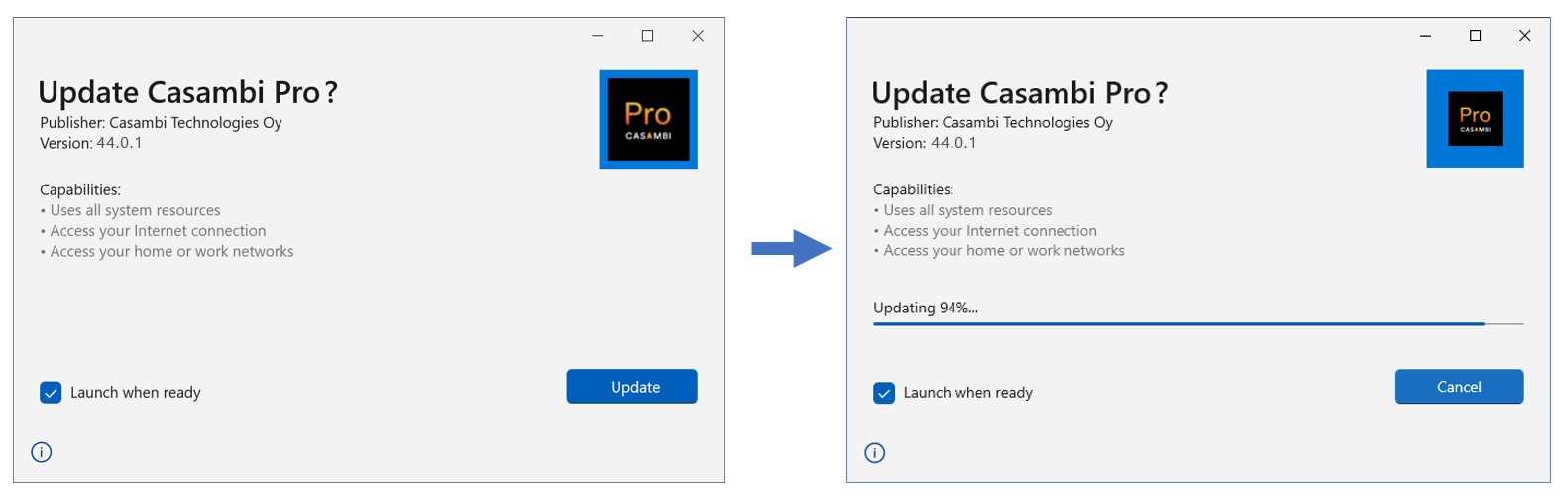
On every startup, the application automatically checks for updates. If a newer version is available, the application provides the user with an option to run the update. It is also possible to continue with the current version.
- It is not possible to downgrade the currently installed version to an older version.
System requirements
Casambi Pro can be installed on any iOS device running iPadOS or iOS version 17.0 or newer. Generally, Pro supports current iOS version plus two older iOS generations. iOS operating systems versions which are older than that are not supported.
To ensure stable performance when handling high-resolution floorplans with big number of overlay elements, the following devices are required as the minimum level:
iPad Recommendations
- iPad Air 5th generation (2022, M1 chip) or newer (8 GB RAM)
- iPad Pro 11-inch (2nd Gen, 2020) or newer (6 GB RAM minimum)
- iPad Pro 12.9-inch (4th Gen, 2020) or newer (6 GB RAM minimum)
- iPad Mini: 7th generation or newer (8 GB RAM)
iPhone Recommendations
- iPhone 14 or higher (6 GB RAM)
- iPhone 13 Pro or higher (6 GB RAM)
Please note, that on iOS devices, the Casambi Pro interface is optimized for iPad rather than iPhone due to the nature of Pro project content (e.g. large floorplans). A larger screen provides a better user experience. The main difference between the iPad and iPhone versions is that the iPhone version supports pairing self-powered EnOcean devices. This is because iPhones have two-way NFC capability, while iPads do not.
Installation process
- Before starting the installation of Casambi Pro, make sure your iPad’s or iPhone’s operating system version is 17.0 or higher. If not, please update the OS version first before proceeding with the installation.
- On your iOS device, go to the Apple App Store
- Search for Casambi Pro app
- Click the Get button in the App Store to install Casambi Pro
- After Casambi Pro has been installed and opened for the first time, tap the “Sign In” button in the app to start the sign-up process.
If you already have a Casambi Pro account, you can use your existing credentials to sign in.
Updating Casambi Pro for iOS
Users can control how the App Store updates apps on their device, including Casambi Pro. On iOS, you can find App Update settings under: Settings→App Store→Automatic downloads.
Depending on the selected App Updates setting, updates are installed either manually or automatically:
- Setting is OFF: User needs to check if there are updates and launch update installation manually in the App Store.
- Setting is ON: App Store pushes the update to user’s device automatically, without asking for permission.
It is not possible to downgrade the current installed version.
Uninstalling Casambi Pro
On both Windows and iOS devices, Casambi Pro can be uninstalled following the Operating System’s uninstallation tools and conventions.
Uninstalling the application from a device does not affect existing projects or user accounts.