Managing projects
Opening a project
Casambi Pro projects are opened by clicking a project row in the Backstage list view. If a project is already open, its status is indicated directly on the project row.
An active internet connection is required to open, edit, and save projects; Casambi Pro does not support offline editing. The software continuously syncs all changes to the cloud, making a stable connection essential.
To prevent configuration conflicts, a project can only be edited on one device at a time. To access and edit a project on a different device, you must first close it on the device where it is currently active.

However, if a project is open and being edited in Casambi Pro for Windows, it can be opened in read-only mode on Pro for iOS. In the read-only mode, the user can browse the project but cannot make any changes. On iPad/iPhone, the read-only state is indicated at the top of the screen.
Saving a project
Projects can be saved both manually and automatically. Every save syncs the project to the Casambi Pro cloud service, ensuring your data is always up to date across all platforms.
Automatic saving
Casambi Pro automatically saves projects on both Windows and iOS versions to ensure data integrity.
Windows
- Automatic Intervals: If changes are made and not saved manually, the application saves the project automatically based on the interval defined in Settings.
- Customization: The default interval is 1 minute, but this can be adjusted in the Settings view. Note that automatic saving cannot be disabled.
- Status Indicator: The bottom bar displays the saving status whenever a sync is in progres
iOS
- Instant Sync: On iOS, the project is saved automatically as soon as changes are detected, ensuring the mobile version is always up to date.
Manual saving
In Casambi Pro for Windows, a project can be always saved manually by clicking the Save button at the Home ribbon of the main workspace.
There is no manual save option in the iOS version, changes are saved always automatically.
Closing a project
A project can be closed both manually and automatically.
Manual closing of a project
Windows:
To close a project, navigate to the Backstage view and click the Close button located in the left-hand ribbon.
iOS:
There are two ways to close a project on iOS:
- Manual Navigation: Return to the Backstage by tapping the arrow button in the top-left corner of the main workspace toolbar.
- Automatic Closing: On iOS, the project closes automatically if you navigate away from the Casambi Pro app (e.g., switching to another app or returning to the device's Home screen).
Automatic closing of a project after inactivity
The auto-close feature is active on both Windows and iOS to ensure projects do not remain locked indefinitely.
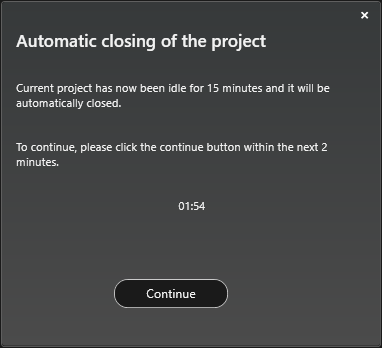
- Idle Timeout: If a project remains idle (no changes made) for 15 minutes, the application prepares to close the session.
- Warning Dialog: After the 15-minute idle period, an "Automatic closing of the project" dialog appears.
- Grace Period: To stay in the project, you must click the Continue button within two minutes of the dialog appearing.
- Session Unlock: If no action is taken, the project closes automatically and is unlocked, allowing it to be opened for editing on another device.
Handling unexpected app closure If the Casambi Pro application closes unexpectedly when a project is open (or the user force-quits it), the project will remain locked to that device until it is released manaually or automatically.
Options in this situation:
- Manual release: Reopen the project on the same device and close it properly to release the lock.
- Automatic release: If no action is taken, the cloud service will automatically release the lock after 20 minutes of inactivity.
After the project is released, it can be opened again with other devices.
Sharing a project
Casambi Pro projects can be shared between multiple users. A project owner can invite new project members by sending them an invitation email from the Members tab in the Project view.
Project Members
There are two user role options in Casambi Pro:
- Owner: Has all rights to the project
- There must always be at least one user with Owner role in a project. Therefore, if a project is handed over to another stakeholder, the receiving party must have at least one user with Owner rights to be able to fully manage the project.
- Only an Owner can delete a project. Therefore, it is strongly recommended that the Owner role is given only to those persons who truly need it and understand the responsibilities associated with Owner rights.
- Only Owner can add or remove users from a project. Owners can remove also other Owners.
- Editor: Can do everything else in a project except
- Cannot delete the project and
- Cannot add new members to a project.
When a project is created, the creator automatically gets an Owner role in a project. There is no limit on the number of members in a project.
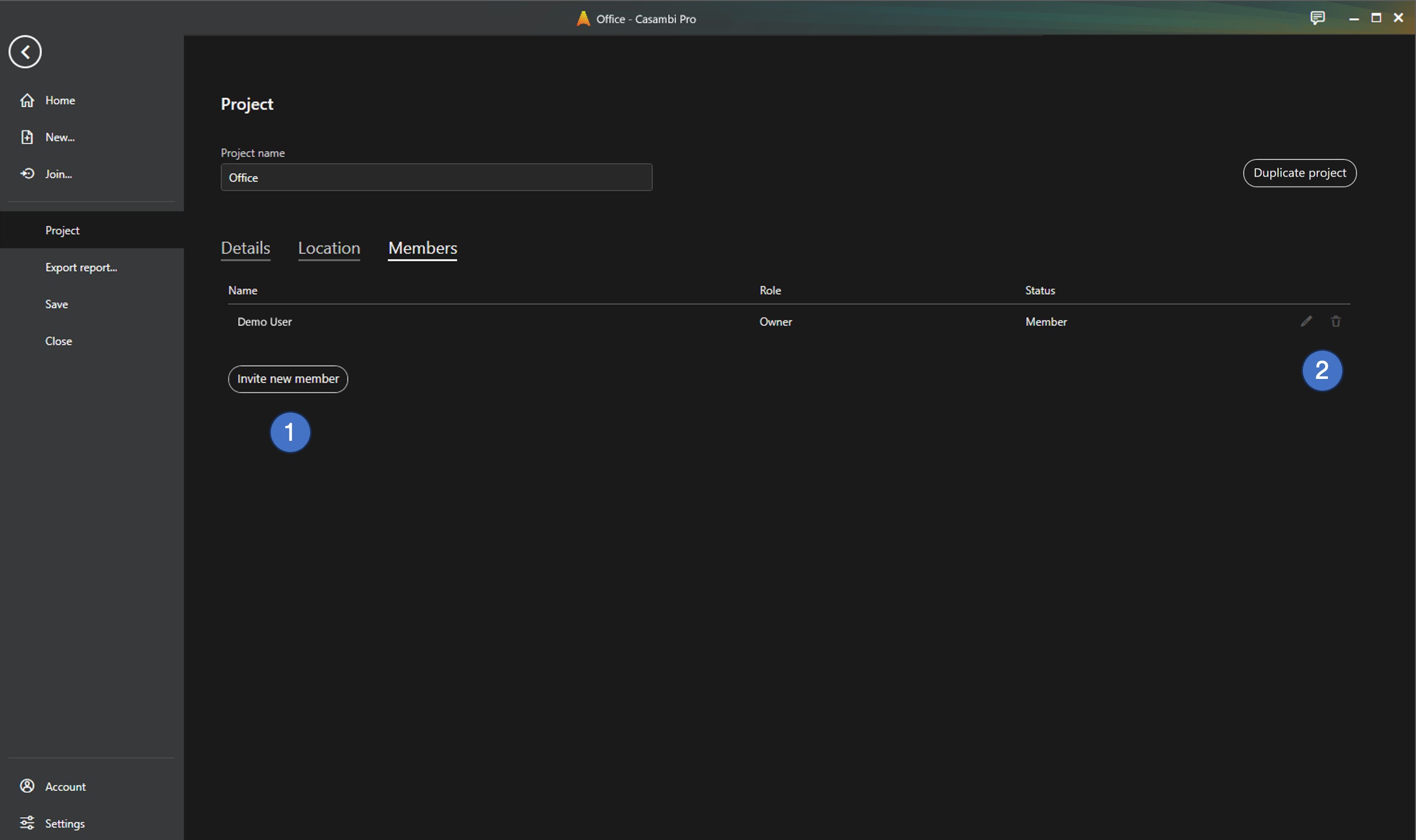
- The Invite new member button is used for adding new members to a project. The button is visible only to users with Owner role.
- The Edit and Delete buttons (the pen and trash can icons) are used for changing member’s user role and for removing members from a project. The buttons are visible only to users with Owner role.
Inviting a new member
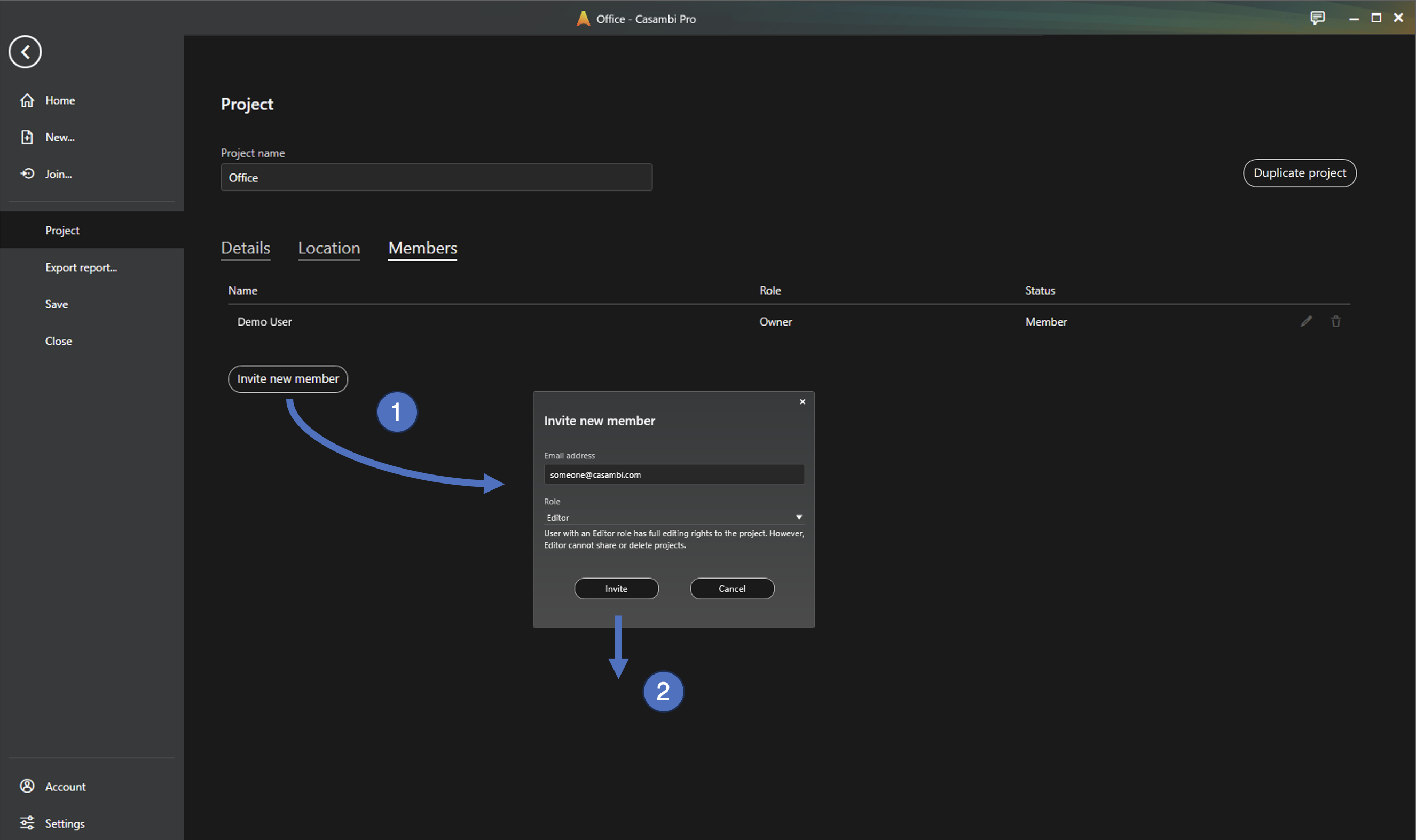
- As a project owner, navigate to the Members tab and click the Invite new member button.
- In the opened dialog, enter the invitee’s email address and click the Invite button.
An invitation email is sent to the entered email address. The email contains an invitation code together with instructions of how to access and install Casambi Pro.
New members can only be invited using the Windows version of Casambi Pro. Joining a project is possible on both Windows and iOS.
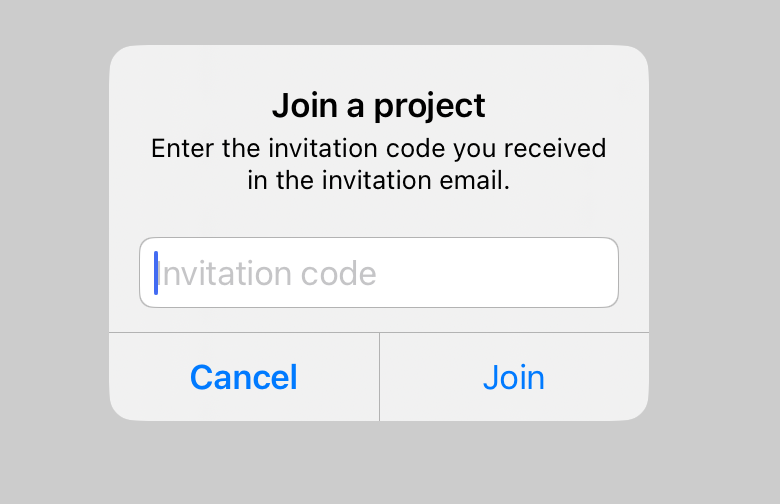
Using the invitation code to join a project
Joining a Project via Invitation Code
- Install Casambi Pro: If you do not have the application, install it on a Windows PC, iPad, or iPhone. You can find installation links in your invitation email or search for "Casambi Pro" in the Apple App Store.
- Sign In or Sign Up: Open the application and sign in. If you do not have a Casambi Pro account, you must create one (sign up) before proceeding.
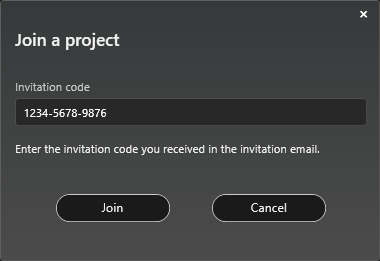
- Enter the Code: Once signed in, navigate to the Backstage view. Click the Join… link in the left-hand pane and enter your invitation code into the dialog box.
Windows
iPad
Deleting a project
Projects can be deleted only in Casambi Pro for Windows, and only by a user with the Owner rights. If a project has any paired devices in it, it cannot be deleted before the paired devices are unpaired from the project.
A project can be deleted by clicking the Delete button (trash can icon) in the project list. The button is disabled if user does not have rights to delete the project.
It is not possible to delete a project in Pro for iOS.
Duplicating a project
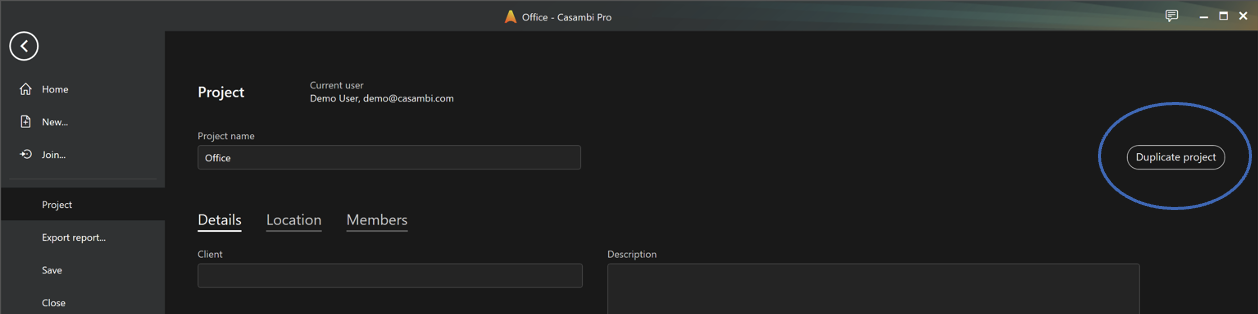
To duplicate a project in Casambi Pro for Windows:
Ensure the project is open and all changes are saved. In the Project Details view, click the Duplicate Project button. A dialog is displayed where you can enter the name for the new project duplicate.
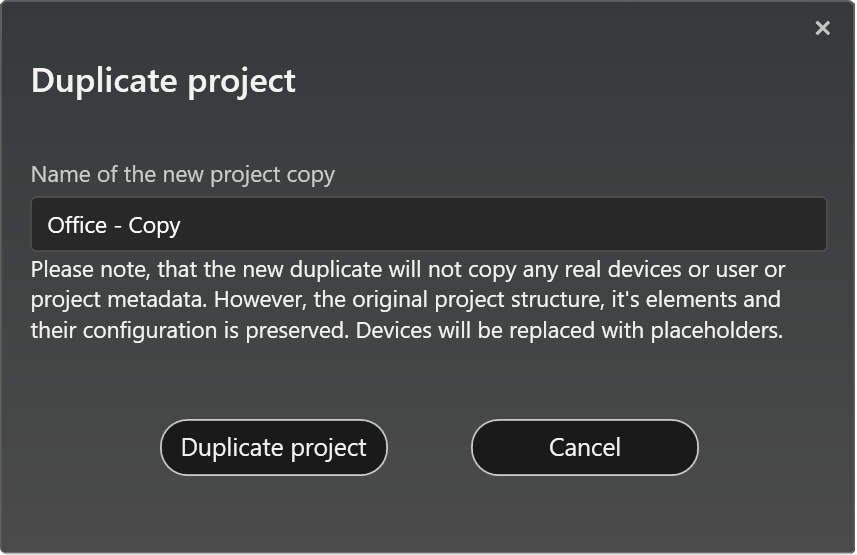
Duplicating a project copies the project structure, elements, and configurations, but does not copy real paired devices or networks. Controllers and gateways are replaced with placeholder objects in the new project.
When the project duplicate is ready, currently open project will be closed.
- Project duplication can be done only with Casambi Pro for Windows.
- Project items cannot be copied from project to another project via Clipboard.
Project Explorer pane in main workspace
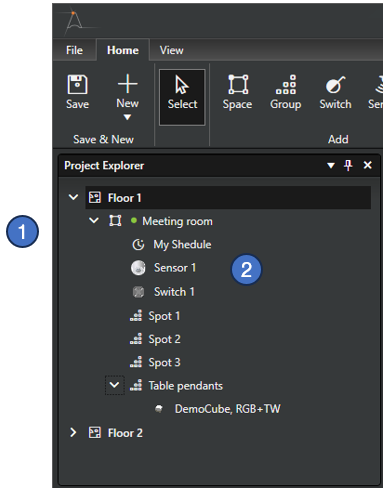
In the main workspace, the contents of the layouts in the project is collected into the Project Explorer pane.
-
The pane lists all layouts, spaces, controllers and luminaire groups and paired luminaires. Each section can be expanded and collapsed.
-
When a virtual controller is replaced by a real device, the device icon is displayed in the list.
The Project Explorer works similarly in both Windows and iOS versions of Casambi Pro.
General notes about projects
- Project items cannot be directly copied from a project to another project.
- Existing Casambi networks created with the Casambi App cannot be opened in or imported to Casambi Pro.