Adding devices to networks
Casambi enabled devices can be added to networks only with Casambi Pro for iOS.
Project prerequisites for pairing devices
- The project must have at least one layout with one space and one luminaire group.
- There must be a placeholder network (created in Casambi Pro for Windows) or an existing Pro network.
- The space to which you want to pair the device must be linked to a placeholder or real network.
Controllers are paired to spaces, and luminaires are paired to luminaire groups in spaces.
Casambi Cloud Gateways and Casambi DALI Controllers (Salvador products) are paired directly into networks, and they can be placed anywhere in the layout. They can be initially added as placeholders in Casambi Pro for Windows which are replaced with real ones at the pairing phase. However, it is also possible to add a Cloud Gateway and DALI controller also without a placeholder.
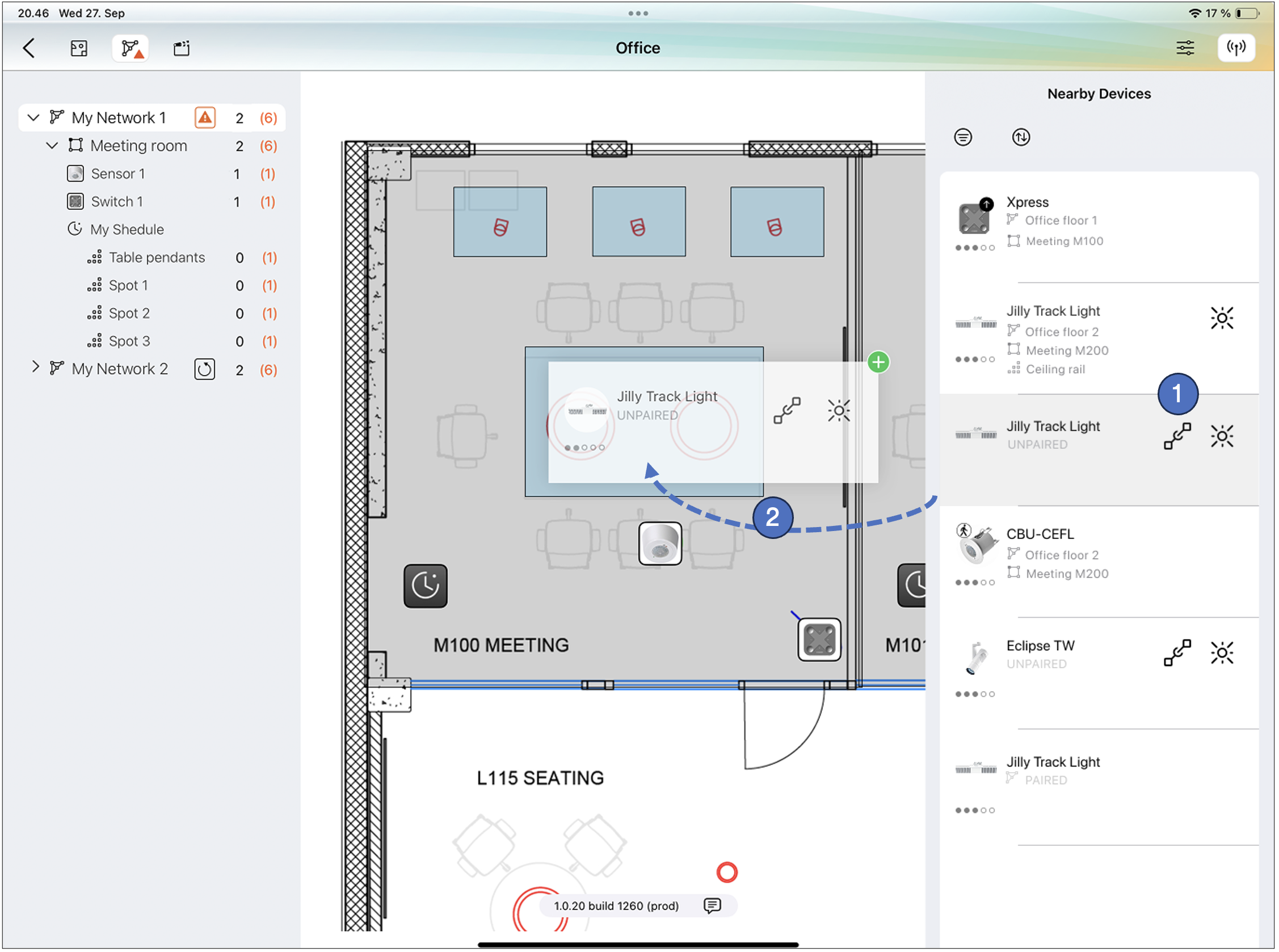
Pairing options in iPad
- Select the target object (for controllers) or target group (for luminaires) from the layout and press the Pair button in the device list.
- Long-press on the device row in the nearby devices list and drag-and-drop it into desired target (space, placeholder or group, depending on if the item is a controller or a luminaire).
- When an item is dragged, an icon (plus or deny) on the top right corner of the dragged item indicates if the item can be dropped on the underlying place.
- If the target where the item is dropped does not belong to a network, the application gives an error explaining why the pairing is not possible.
- If an animated arrow appears next to the Networks icon in the top bar, it indicates that configuration changes in one or more networks have not yet been uploaded.
- An upload button is shown in the network row if there are any configuration changes which are not yet uploaded to a network.
- A circular upload button can be used to reload the configuration to the network.
note
- To make pairing faster, the network configuration is not automatically refreshed to the entire network when each device is paired. Therefore, once the pairing operation is finished, it is recommended to update the latest configuration to the network manually by pressing the Update button in the network list (number 4 in the image above).
- In some rare cases, after a device has been paired, it is not visible in the layout or project explorer (it becomes a "ghost device"). In this case, the device is paired correctly to the network but the Pro application fails to recognize it correctly. To resolve this situation, unpair the device from the nearby device list and pair it again.