Scenes
Overview to Scenes in Casambi Pro
Scenes allow you to create and recall specific lighting scenarios. A scene can control any combination of luminaire groups within a network, and a single luminaire group can be included in multiple different scenes. You can create up to 200 scenes per network.
Starting with the Casambi Pro October 2026 release, scene and controller scopes have been expanded network-wide:
- Scenes: Previously restricted to a single space, scenes can now include any luminaire group from the entire network.
- Controllers: Previously limited to controlling objects within their own space, controllers can now reference any scene across the entire network.
Due to this architectural update, you must update existing projects in Casambi Pro for Windows. This is a one-time requirement per Casambi Pro project.
Key Principles of Scenes
To effectively design your project, keep these core behaviors in mind:
- Network Bound: Every scene belongs to one specific network.
- Group Control: A scene controls one or more luminaire groups. These groups can be part of multiple different scenes. Note, that individual luminaires cannot be controlled separately, in Casambi Pro the control target is always a luminaire group.
- Functional Scope: While bound to a network, a scene's impact can span one or multiple Spaces within that network.
- Capacity: You can create up to 200 scenes per network.
- Parameters: By default, scenes control dimming levels. You can manually add other parameters like Color Temperature or RGB Color via the scene properties.
- Overrides: Scenes use default values for participating groups, but these can be overridden with local values specific to a group within that scene.
Scene Activation
Scenes are passive and must be triggered by an external input:
| Method | Description |
|---|---|
| Manual | Pushing a Casambi-enabled button/switch or tapping the run scene icon in the Casambi Pro for iOS app. |
| Sensor | Automating a scene to activate when movement or occupancy is detected by a sensor. |
| Schedule | Setting a schedule to activate a scene on or off at specific times of the day, date or astronomical events. |
Advanced Scene Controlling
Beyond standard static lighting, Casambi Pro supports dynamic logic-based scenes:
- Circadian Scenes: Luminaires automatically adjust their dimming or color temperature throughout the 24-hour day following a predefined profile graph.
- Daylight Scenes: The scene dynamically adjusts light output based on real-time lux measurements from a light sensor (Daylight Harvesting).
Unlike the standard Casambi App, Casambi Pro does not support animated or time-sequence-based scenes.
The Scenes User Interface in Casambi Pro
The Scenes pane is the central interface for managing lighting scenarios. The following sections correspond to the numbering in the interface overview:
- Windows
- iPad
Windows
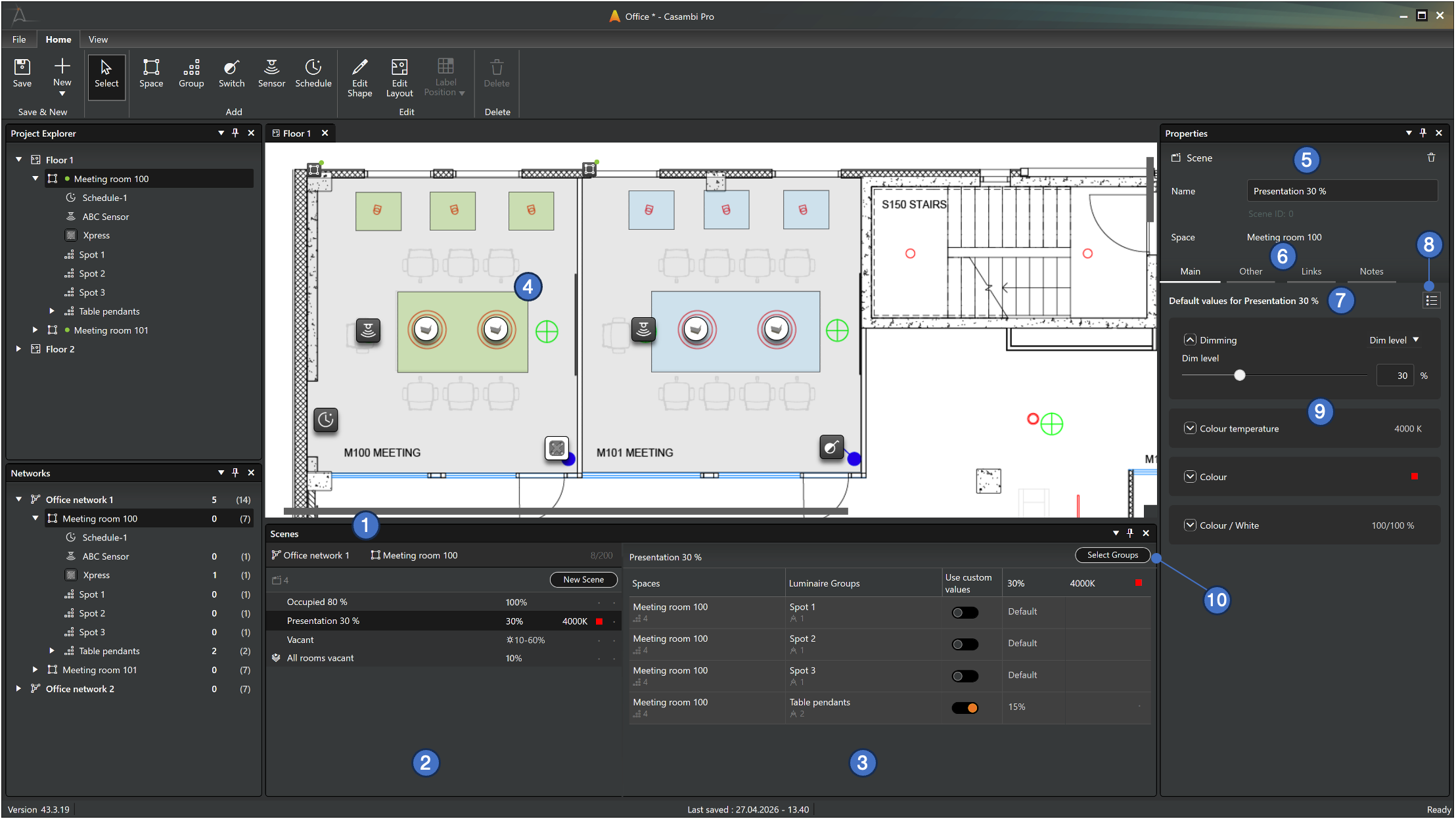
- Header & Capacity: The header displays the currently selected Network or Space. It also indicates the network's scene capacity (e.g.,
8/200); each network supports a maximum of 200 scenes. - Scenes List (left side):
- Context: List contents depend on the selected network or space.
- If a space is selected, the list only displays scenes where at least one luminaire group from that space participates.
- If a network is selected, the list displays all scenes in that network.
- Selection: Click a scene name to select it from the list to see its details on the right.
- Luminaire Group Table (right side):
- When a scene is selected, this table displays the participating luminaire groups and their specific configuration.
- The rows show participating luminaire groups, their parent spaces, and specific behaviour.
- Click a row to edit that group’s local behavior in the Properties pane.
- Click the scene name or the value column header to see and edit scene's default behaviour.
- Layout Identification: When a scene is selected, all participating luminaire groups are highlighted in green on the floor plan layout.
- Property Pane
- Header displays general information for the scene or luminaire group selected from the Scenes pane.
- If the entire scene is selected, the properties pane shows the default values for the scene. By default, these default values are used by all participating groups unless they are set to use local values.
- If a single luminaire group row is selected, the properties pane shows the used values for that group.
- Navigation Tabs: The Main, Other, Links, and Notes tabs display the parameters for the item selected in the Scenes table.
- Context Label: The top of the Main tab explicitly states the selection context (e.g., "Default values for...") to prevent editing errors.
- Parameter selection: Click the button to select which parameters are used in the scene.
- Parameter Adjustment: Adjustable parameters such as dimming levels, color temperature, and RGB values are modified here.
- Group Management: Click the Select Groups button to add or remove luminaire groups to or from the currently focused scene.
iPad
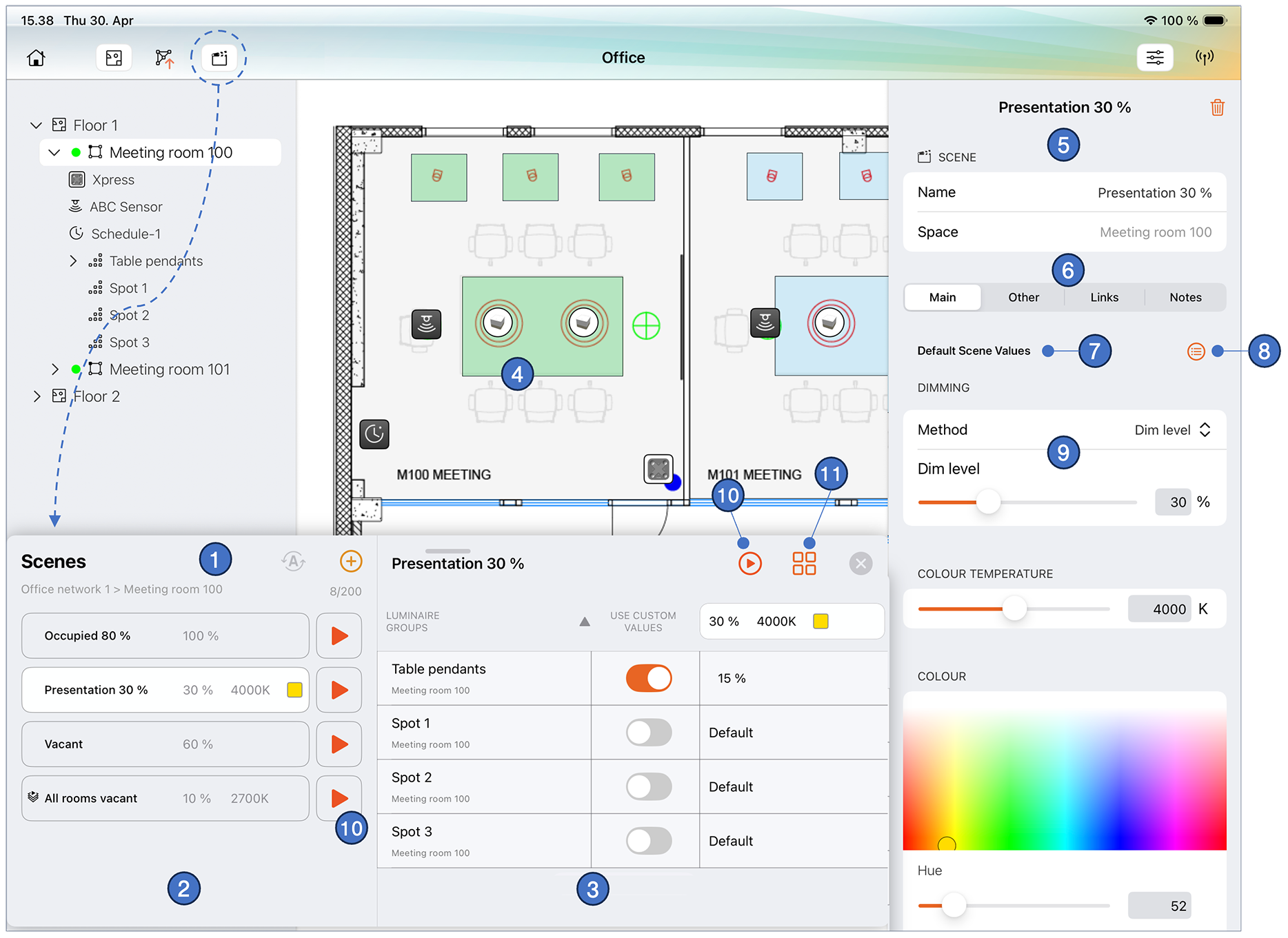
On iOS devices, the Scenes user interface has some additional features compared with the Casambi Pro for Windows. This is because on iOS there is a network connection to the physical devices, and scenes can be activated directly from the app.
- Header & Capacity: The header displays the currently selected Network or Space. It also indicates the network's scene capacity (e.g.,
8/200); each network supports a maximum of 200 scenes.- iOS only: The Resume automation button**. Resuming automation will deactivate any manually activated scenes and allow the luminaires to be controlled by sensors or timers.
- Scenes List (left side):
- Context: List contents depend on the selected network or space.
- If a space is selected, the list only displays scenes where at least one luminaire group from that space participates.
- If a network is selected, the list displays all scenes in that network.
- Selection: Click a scene name to select it from the list to see its details on the right.
- iOS only: Play/Stop button for activating/deactivating a scene.
- Luminaire Group Table (right side):
- When a scene is selected, this table displays the participating luminaire groups and their specific configuration.
- The rows show participating luminaire groups, their parent spaces, and specific behaviour.
- Click a row to edit that group’s local behavior in the Properties pane.
- iOS only Play/Stop button at the top, for activating/deactivating a scene.
- Layout Identification: When a scene is selected, all participating luminaire groups are highlighted in green on the floor plan layout.
- Property Pane
- Header: displays the name of the scene selected from the Scenes pane, and the Delete scene button.
- If the entire scene is selected, the properties pane shows the default values for the entire scene.
- If a single luminaire group row is selected, the properties pane shows the used values for that group.
- Navigation Tabs: The Main, Other, Links, and Notes tabs display the parameters for the item selected in the Scenes table.
- Context Label: The text under the Main tab explicitly states the selection context (e.g., *"Default values for <scene name>) to prevent editing errors.
- Parameter selection: Click the button to select which parameters are used in the scene.
- Parameter Adjustment: Adjustable parameters such as dimming levels, color temperature, and RGB values are modified here.
- iOS only: Play/Stop buttons at the scene list and at the top right button bar, for activating/deactivating a scene.
- Group Management: Click the Select Groups button to add or remove luminaire groups to or from the currently focused scene.
- Space templates can be created and modified only in Casambi Pro for Windows.
- A space template is a completely self-contained, independent object with no dependencies outside its own scope. Because of this, in a space template (and space instances created from it):
- Controllers can only reference scenes and luminaire groups that reside within the template itself.
- Scenes can only include luminaire groups that reside entirely within the template itself.
- External controllers can still reference scenes and luminaire groups within a space instance created from a space template.