Pairing Casambi Cloud Gateways
The actual Cloud Gateway units can be added to networks in two ways:
- On top of a gateway placeholder (like pairing a sensor or switch), or
- As a new device without a placeholder.
The network to be controlled with a Cloud Gateway must have been shared as Admin only or Password protected to enable gateway use. It is not possible to use a gateway on an Open or Not shared network. Therefore, make sure that the visibility setting in the network properties is set to "Password protected".
Pairing in iOS
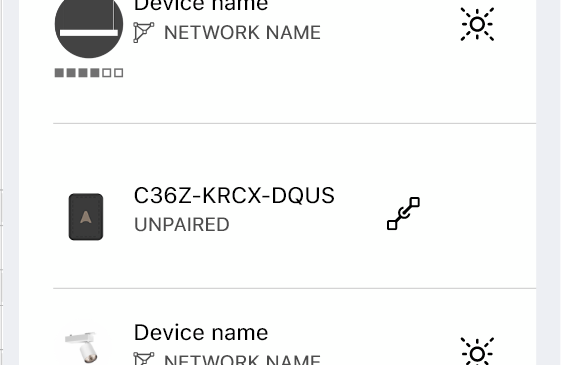
To be detectable by Casambi Pro and visible on the nearby devices list, the gateway unit must be powered up.
The unpaired gateway devices are shown in the list with its serial number.
Pairing can be done the same way as any other device.
The already paired cloud gateway devices cannot be shown in the device list.
After a successful pairing, the cloud gateway device is removed from the nearby device list and the placeholder icons on the layout, Project Explorer and Network list are replaced by the Casambi Cloud Gateway icon. Gateway’s properties can be accessed by clicking the gateway element.
Connecting the Cloud Gateway to Internet
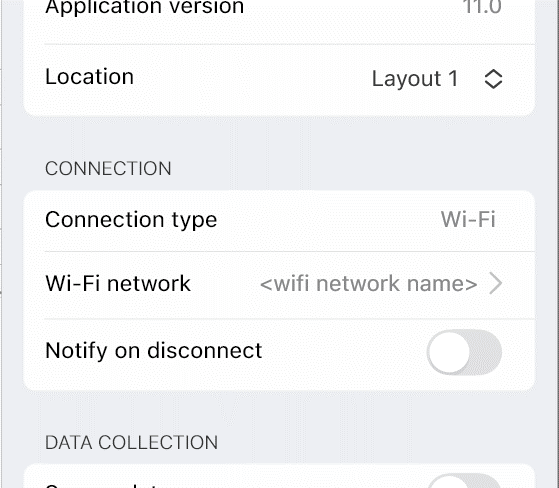
The final step in connecting a gateway is to select how it is connected to the Internet.
In cloud gateway’s properties, the Internet connection can be set in the Connection section.
- If an Ethernet cable with Internet connection is attached to the device, the connection is ready for use without any actions.
- If there is no Ethernet cable, you need to select a Wi-Fi connection. In this case, select a Wi-Fi network manually.
- The connection method can be changed afterwards if needed.
Changing Internet connection method
When changing the internet connection method from WiFi to Ethernet, you only need to
- Connect an Ethernet cable to the Cloud Gateway device. The connection type is changed automatically.
When changing the internet method from a WiFi network to another Wifi network, you need to
- First unpair the Cloud Gateway gateway device,
- Pair the gateway again and
- Select the preferred WiFi network.