Creating a virtual network
Virtual (placeholder) networks can be created only with Casambi Pro for Windows. In Casambi Pro, a placeholder network can be configured like a traditional Casambi network already before the real mesh network with devices exists.
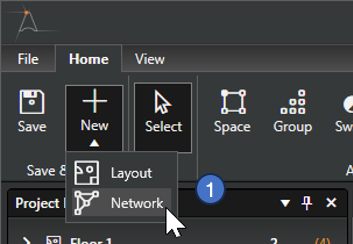
- Start by selecting the Network option behind the New button in the ribbon. Other option is to right-click in the Networks pane and use the New Network option in the context menu.
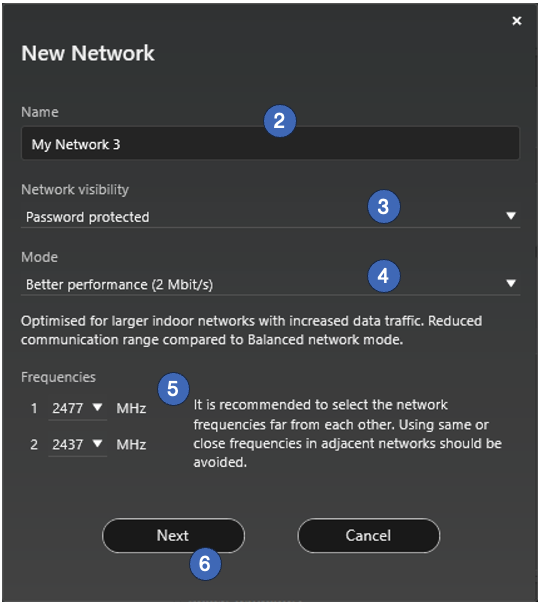
- Enter name for the new network.
- Select network visibility option.
-
Password protected: Only Administrators can control the network with the Casambi App. Password is set with Casambi Pro for iOS (see the Network properties section below).
Please note, that this password enables only controlling the network with the Casambi App, not editing the network with the Casambi App.
-
Open: All users can control the network with the Casambi App.
-
Users cannot make configuration changes to Casambi Pro networks with the Casambi App.
- Select mode for the network. The network mode and network frequencies can only be configured when creating a network for the first time and cannot be changed after a network has been taken into use.
- Better performance
- Optimized for larger indoor networks with increased data traffic.
- Better performance mode has reduced communication rage compared to Balanced network mode.
- Balanced
- Optimised for small mid-size indoor networks with moderate data traffic.
- Balanced mode is recommended for max. 125 nodes in one network.
- Long Range
- Optimized for small to mid-size outdoor networks with low data traffic.
- Long range mode is recommended for max. 60 nodes in one network.
- Long range mode has increased communication range compared to Balanced network mode.
- This mode is for long range capable devices only.
- Better performance
-
Adjust frequencies the new network uses. Each parameter can be adjusted either with a slider or by entering a numeric value to directly to the text field.
-
Click the “Next” button to proceed to next screen.
-
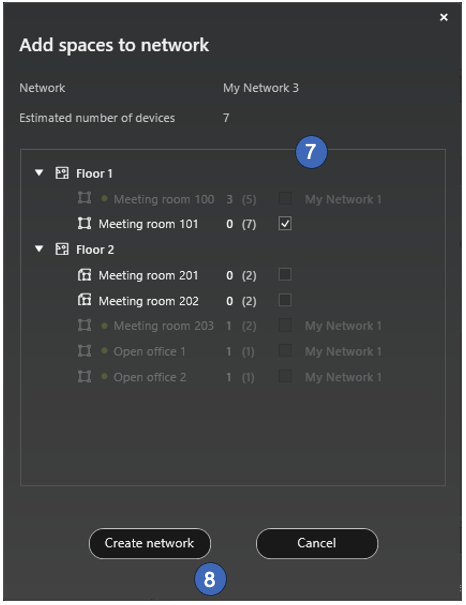
In the next phase, you can assign spaces to the new network.
All layouts and spaces are listed in this view. Spaces which are not yet in a network can be selected. -
Finally, click the “Create network” button to finalize the network.
It is not mandatory to select spaces to the network at this phase, it can also be done later from each space’s properties.