Creating a scene
Creating a scene
New scenes can be created and edited in both Windows PC and iOS versions of the Casambi Pro by using the New Scene button in the Scenes pane.
- Have the Scenes pane open in the user interface. If it is not visible, it can be opened using the options in the top ribbon (Windows) and top bar (iOS devices).
- Select a space by clicking one in the layout or in the Project Explorer pane → The scenes for the selected space appear in the Scenes pane. Initially, the scenes table has no scenes (columns). If the selected space has groups, they are listed in the table as rows.
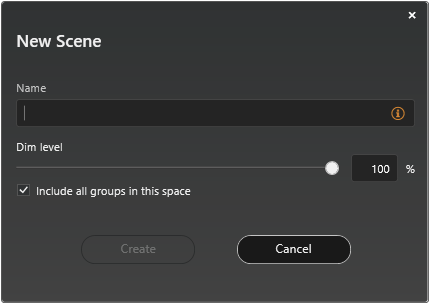
- To create a scene, click on the “New Scene” button in the Scenes pane → The New Scene Dialog opens.
- Enter a name for your new scene and click “Create”. Optionally, you can also
- Set the default dimming level for the scene. The default value is 100%.
- Decide if all groups in current space are included in the new scene. By default, every luminaire group in the space will participate to the scene.
- The new scene will be created, and it appears as a new column in the Scenes table. The scene is highlighted, and its properties can be adjusted in the Properties pane.
Values in the Scenes table
The Scenes table displays both default and customized settings for scenes. The scenes table works the same way on both Casambi Pro for Windows and Casambi Pro for iOS.
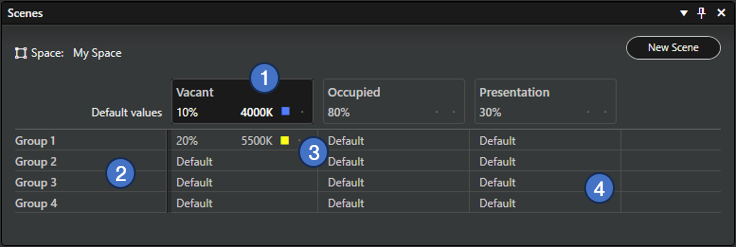
- The topmost cell in a scene column shows the default values set for the scene:
- Dimming level (mandatory). Dimming method can be selected from the property pane.
- Colour Temperature value in Kelvin. The colour temperature is an optional scene parameter that can be set in the properties pane.
- Other optional special parameters set in the properties pane are indicated with icons in the table. In the initial versions of Casambi Pro, the only special parameter is Up/Down light ratio setting. More will be added in future versions of Casambi Pro.
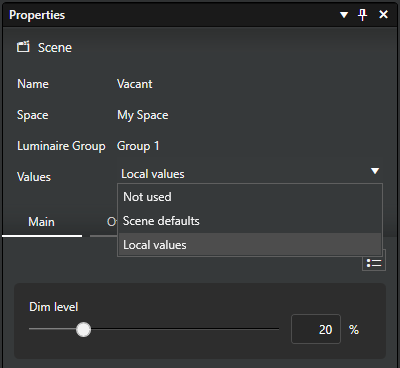
- By default, all groups in the space will participate in the scene with the scene’s default values. Each Luminaire group’s relation to the scene can be managed with these options in the properties pane:
- Scene defaults: Follow the default scene values for dimming, colour temperature etc., or
- Local values: Set customized values for the luminaire group, or
- Not used: Luminaire group does not react to the scene when the scene is activated.
- If the user has selected the “Local values” option for a certain group, the customized values are displayed in the group row. In this case, the local values override the scene’s default values when the scene is activated.
- If the user has selected the “Not used” option for a certain group, the group cell is displayed empty for that scene.
Scene properties
Dimming level is the only mandatory parameter for a scene in Casambi Pro. When needed, additional parameters can be activated in the Mains and Other tabs. In the initial Casambi Pro versions, there are three additional parameters: Colour Temperature, Colour and Up/Down light ratio. More parameters will be added in future releases.
Scene defaults
The default values of a scene will be inherited automatically by all luminaire groups in the same space.
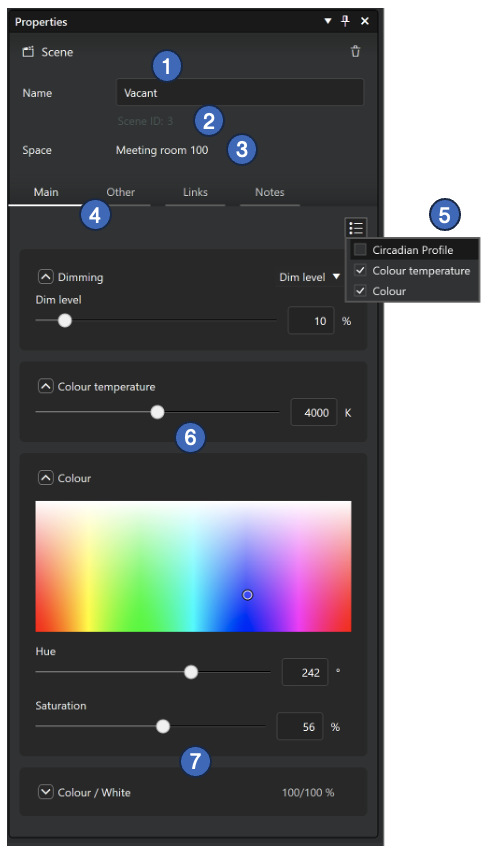
- Scene name (mandatory).
- Scene ID.
- Space where the scene belongs to.
- Tabs for scene options:
- Main
- Dimming level (mandatory)
- Colour temperature (optional)
- Colour (optional)
- Other
- All other optional scene parameters.
- Initially the Other tab contains only Up/Down light ratio setting.
- Links
- List of controllers which are linked to use this scene.
- Notes
- Area for adding free text notes.
- Main
- List for adding optional parameters to the scene.
- Each parameter can be adjusted either with a slider or by entering a numeric value directly to the text field.
- The Colour/White ratio setting is available only when both Colour Temperature and Colour parameters are used in the scene.
Group specific scene values
If user wants to customize scene values for a certain group instead of using the default scene settings, they can select a single cell in the Scenes table and set the custom values in the Properties pane.
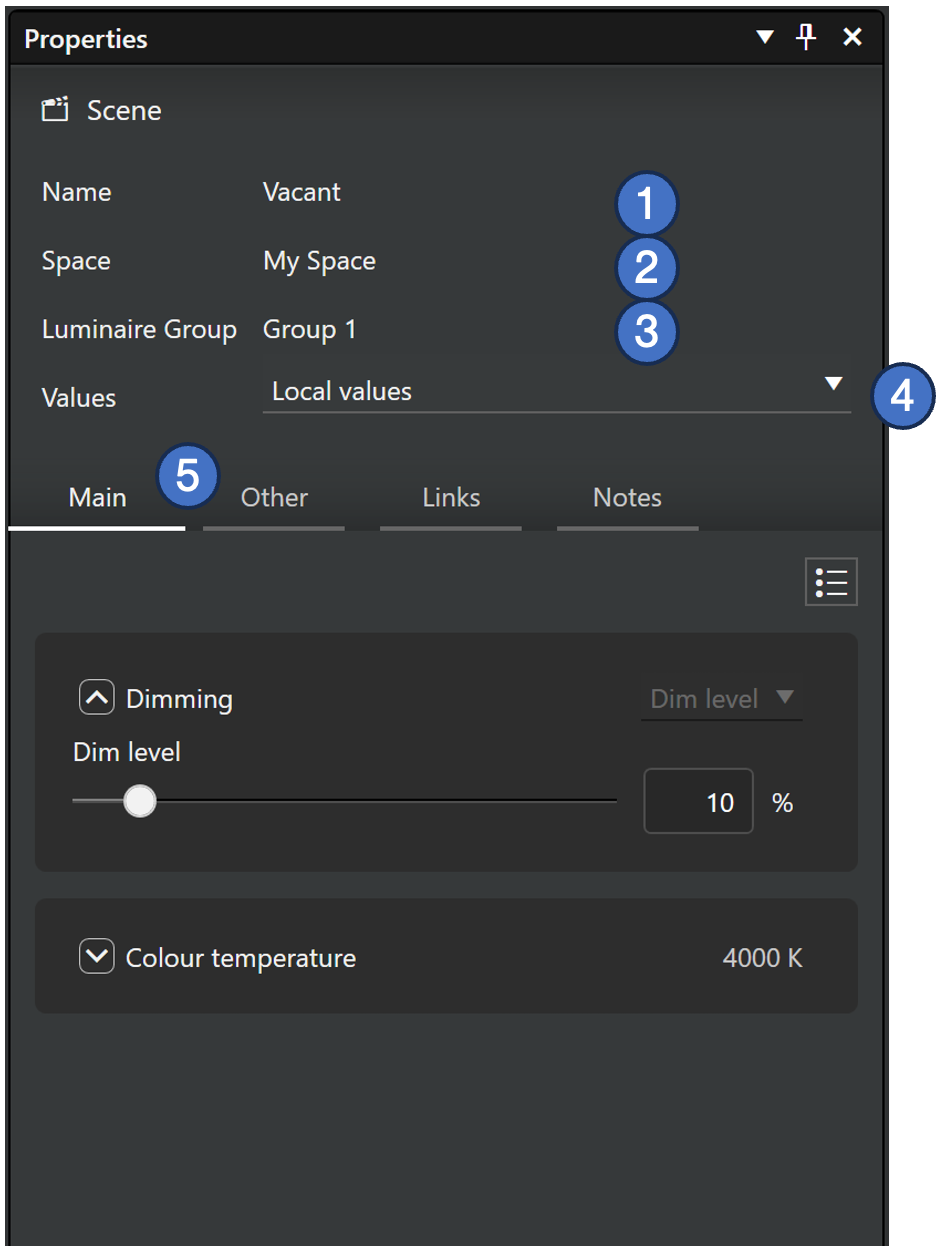
- Scene name. Not editable when a group cell is selected from the scenes table.
- Space where the scene belongs to.
- Luminaire group’s name.
- Values selection. Defines how this luminaire group reacts when the scene is activated:
- Scene defaults: The group follows the default scene values for the parameters. If this option is selected, the parameters are not editable.
- Local values: Use customized values for the luminaire group, instead of the scene defaults.
- Not used: Luminaire group does not react to the scene when the scene is activated.
- Tabs for scene options. These are the same as in the scene defaults case.
Scene table in Casambi Pro for iOS
The scenes are displayed as a table also in the iOS version of Casambi Pro.
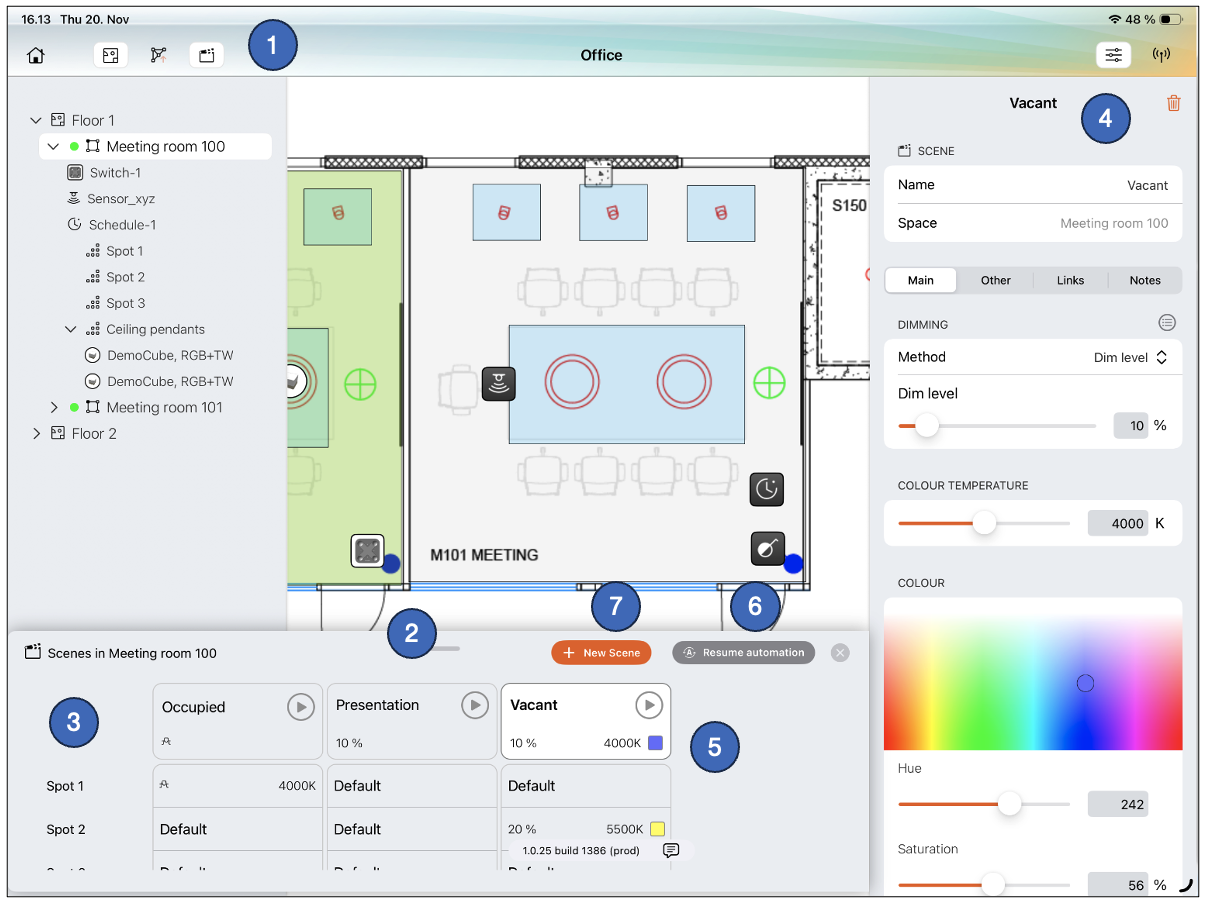
- The Scenes pane is opened/closed from the top toolbar.
- The pane can be resized by dragging the top part of the pane up and down.
- Structure of the scenes pane is same as in Pro for Windows.
- Each cell in the table can be selected to see their details in the properties pane.
- In Pro for iOS, it is possible to run scenes directly from the scenes pane by tapping the Play buttons. The buttons are disabled if there is no connection to the network.
- The Resume automation button can be used to remove the manual control from the network, e.g. when the scenes have been tested with the iPad.
- New scenes can be created with the New Scene button.
Deleting a scene
A scene can be deleted by selecting the scene column header cell in the Scenes table, and then tapping the delete button in scene properties (trash can icon).