User interface overview
Overview
The Casambi Pro user interface consists of two main views:
- Backstage where projects are listed, and project and application-level settings can be accessed.
- In Pro for Windows, it is possible to navigate between the Backstage and Main Workspace views when a project is open.
- In Pro for iPad/iPhone, project is closed when user navigates from Main Workspace to Backstage, or from Casambi Pro to another iOS application.
- Main workspace where the project contents is created and edited.
Backstage
- Home tab
- Account tab
- Settings tab
Home tab
Windows
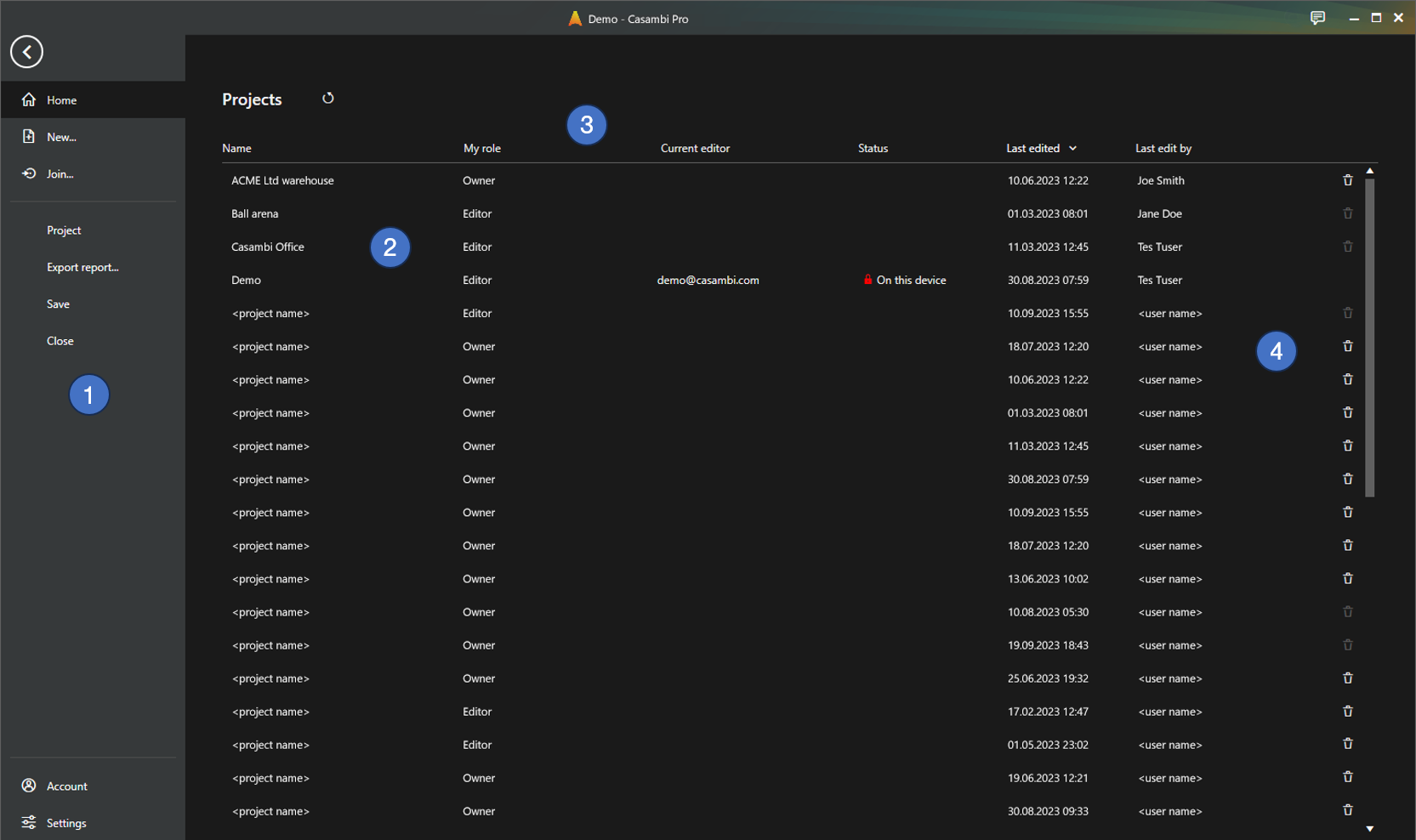
- Side ribbon, with options
- Home: List of projects
- New: Create new project
- Join: Insert invitation code to join a project
- Visible if a project is open:
- Project: Details for currently open project
- Export report…: Export project documentation
- Save: Saving the currently open project
- Close: Closing the currently open project
- Account: Sign In/Out from Casambi Pro
- Settings: Application-level settings and information about Casambi Pro
- List of projects the user has created, or which have been shared with them
- Project list can be updated with the Refresh button.
- Project list can be sorted by clicking the column titles.
- The width of list columns can be adjusted from the title row
- Project list columns:
- Name: Name of project
- My role: User’s role in project (in first version: Owner or Editor)
- Current editor: Shows if a project is currently open and who is editing it.
- Status: Shows the lock status and the device name in which the project is locked. Status columns is empty if project is not edited by anyone.
- Last edited: Date and time when the project was last saved
- Last edit by: Name of the latest editor
- Project can be deleted by using the trash can icon if
- The user has the Owner role
- The project is not currently open on any device
iPad
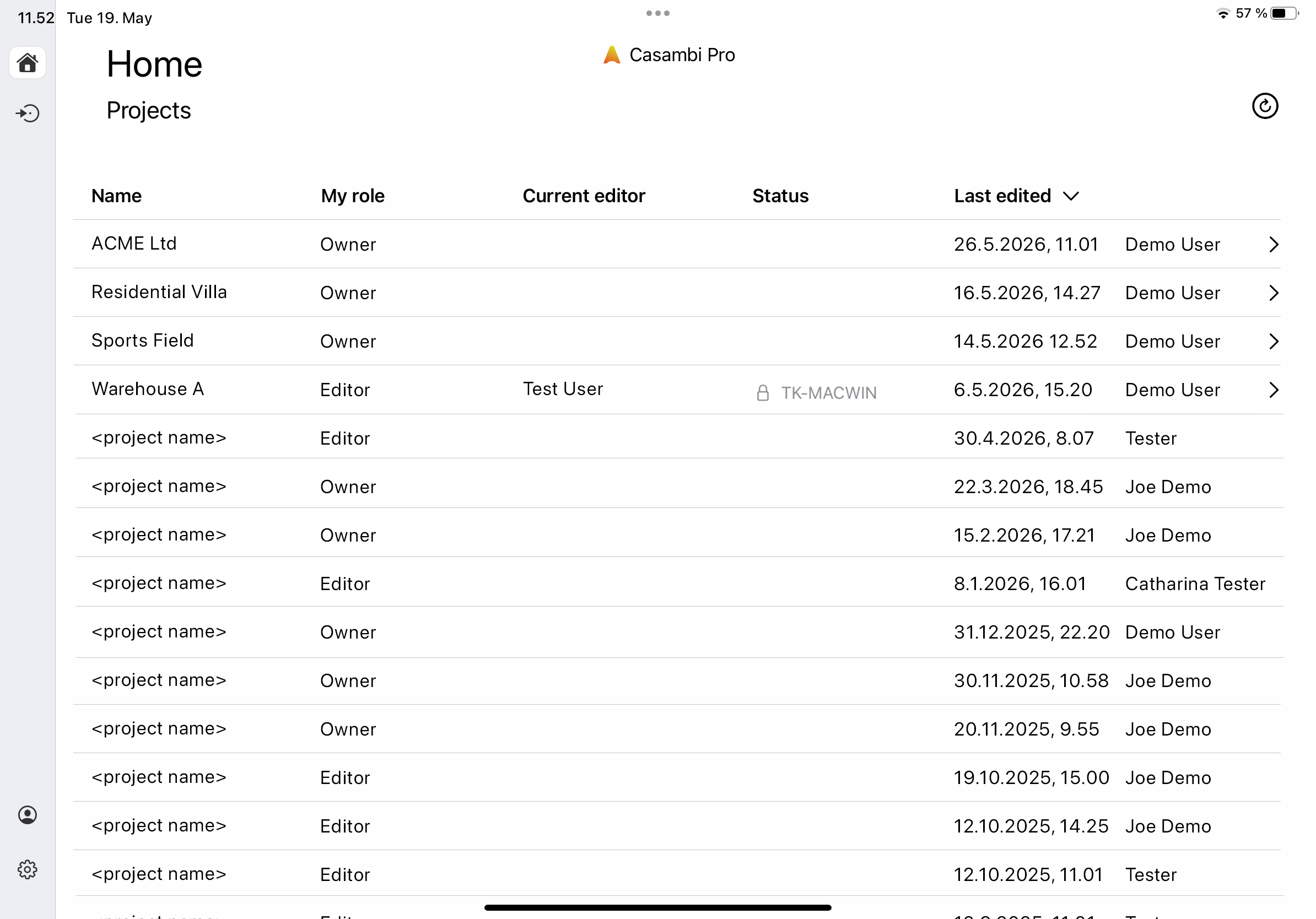
The Backstage view in iOS is arranged in the same way as in Casambi Pro for Windows, with some exceptions:
- Home tab:
- Project list is updated by dragging the list downwards with finger or tapping the Reload button at the top right.
- Projects cannot be created or deleted with iOS.
- When user navigates from Main Workspace to Backstage view, current project is closed.
- User can join a project in both Windows and iOS versions of Casambi Pro. However, projects can be shared only in Windows.
Account tab
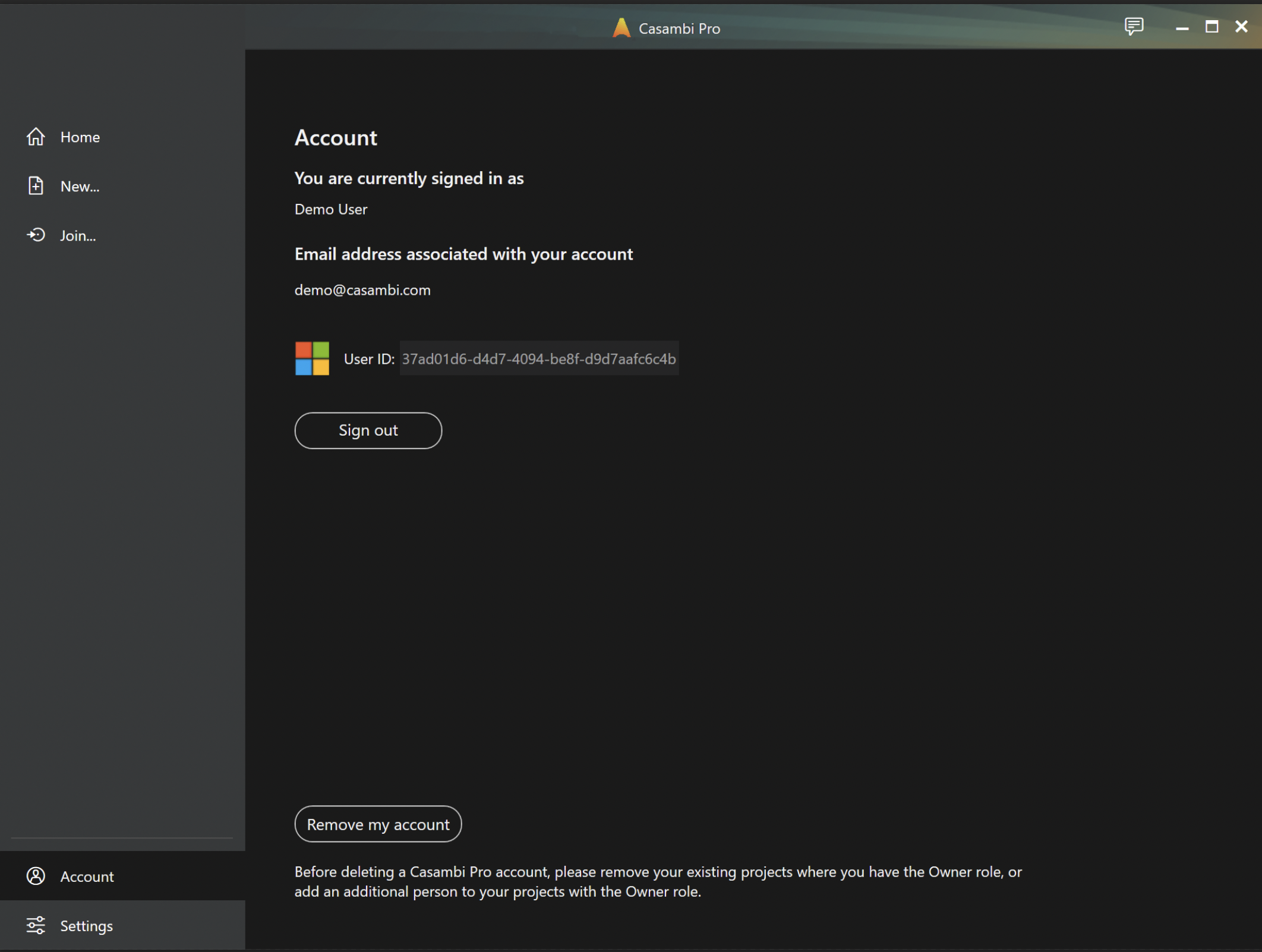
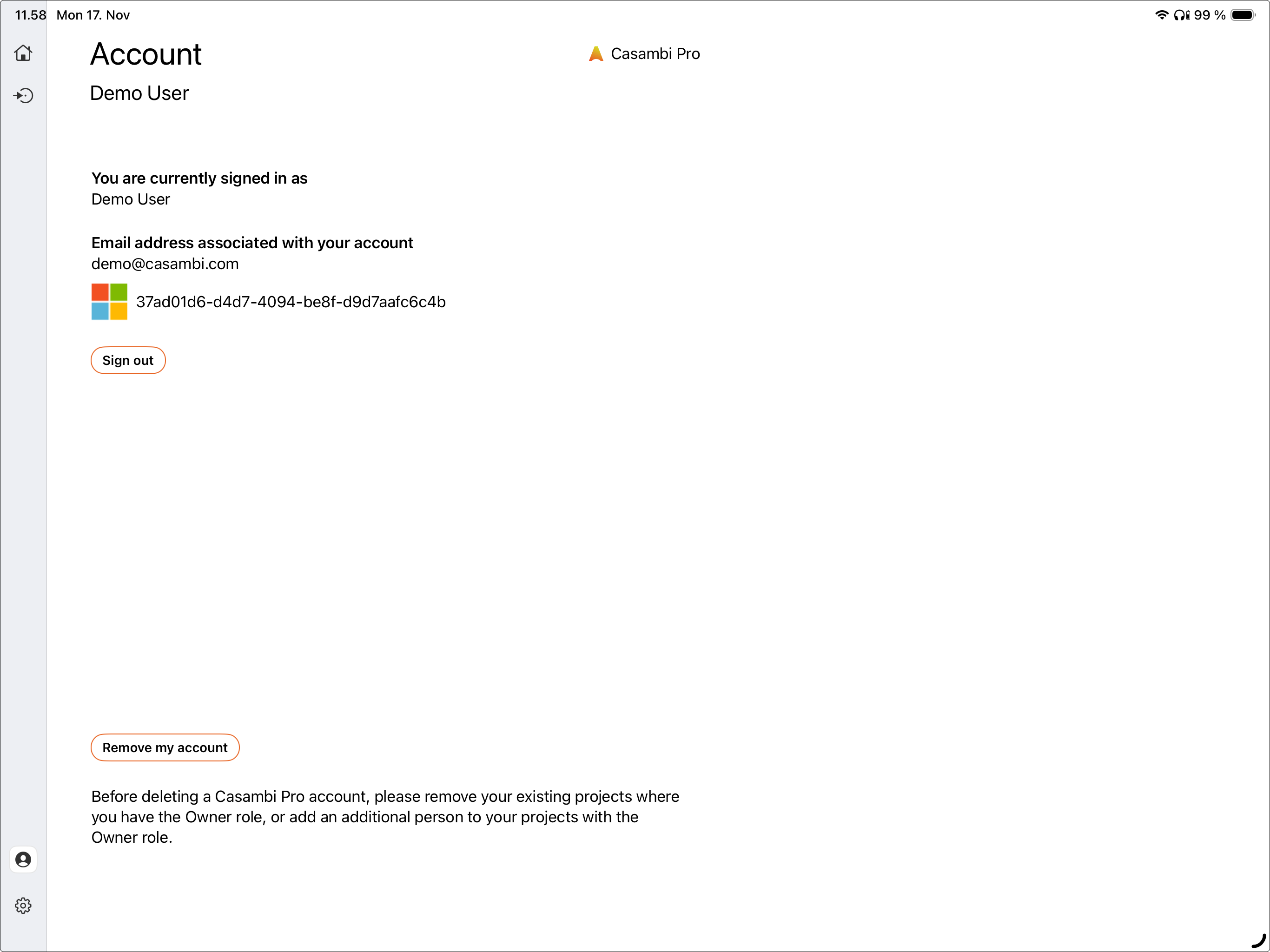
The Account tab is used for signing in and out of Casambi Pro. Information about Casambi Pro accounts can be found in the Getting Started with Casambi Pro page.
Windows
iPad
Settings tab
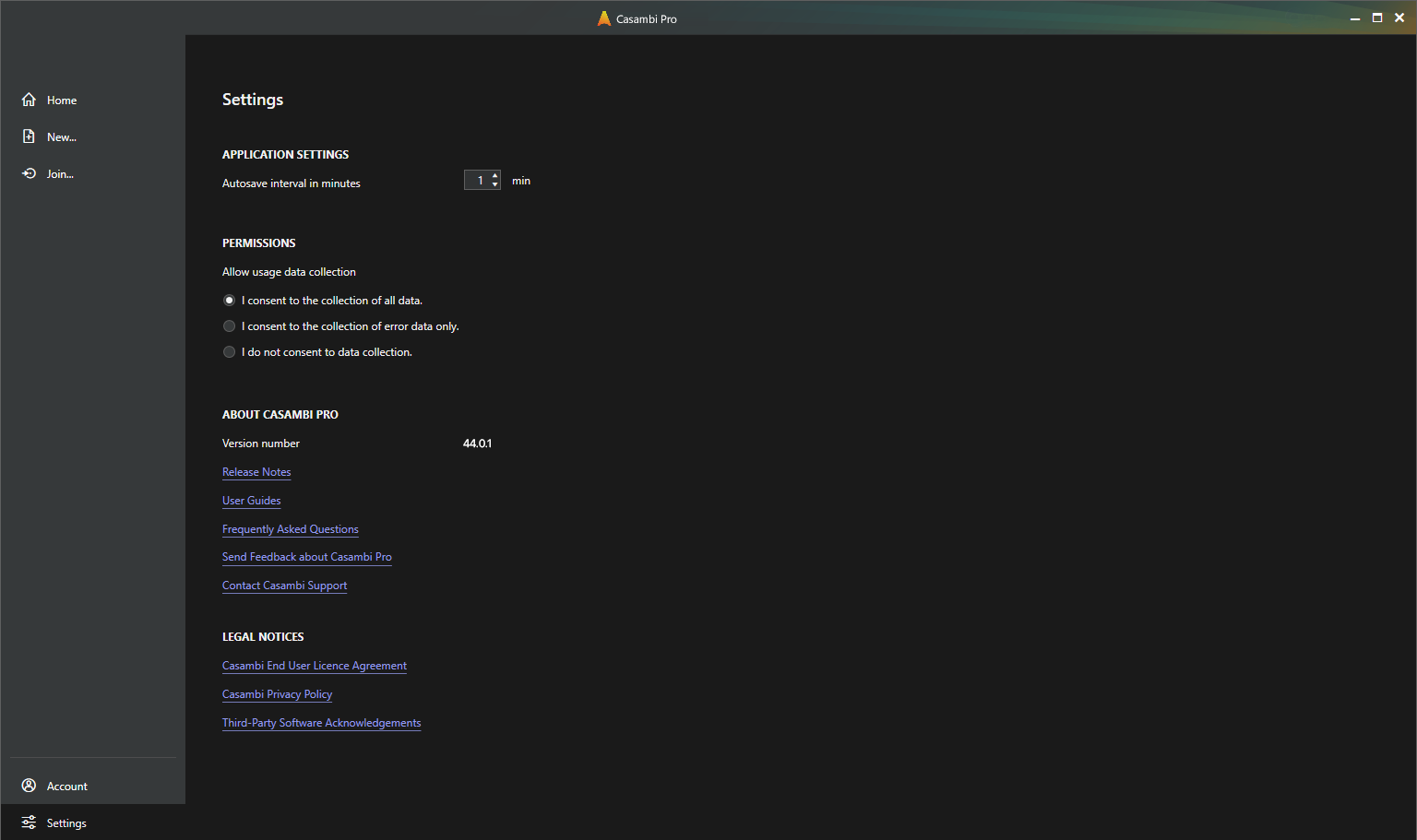
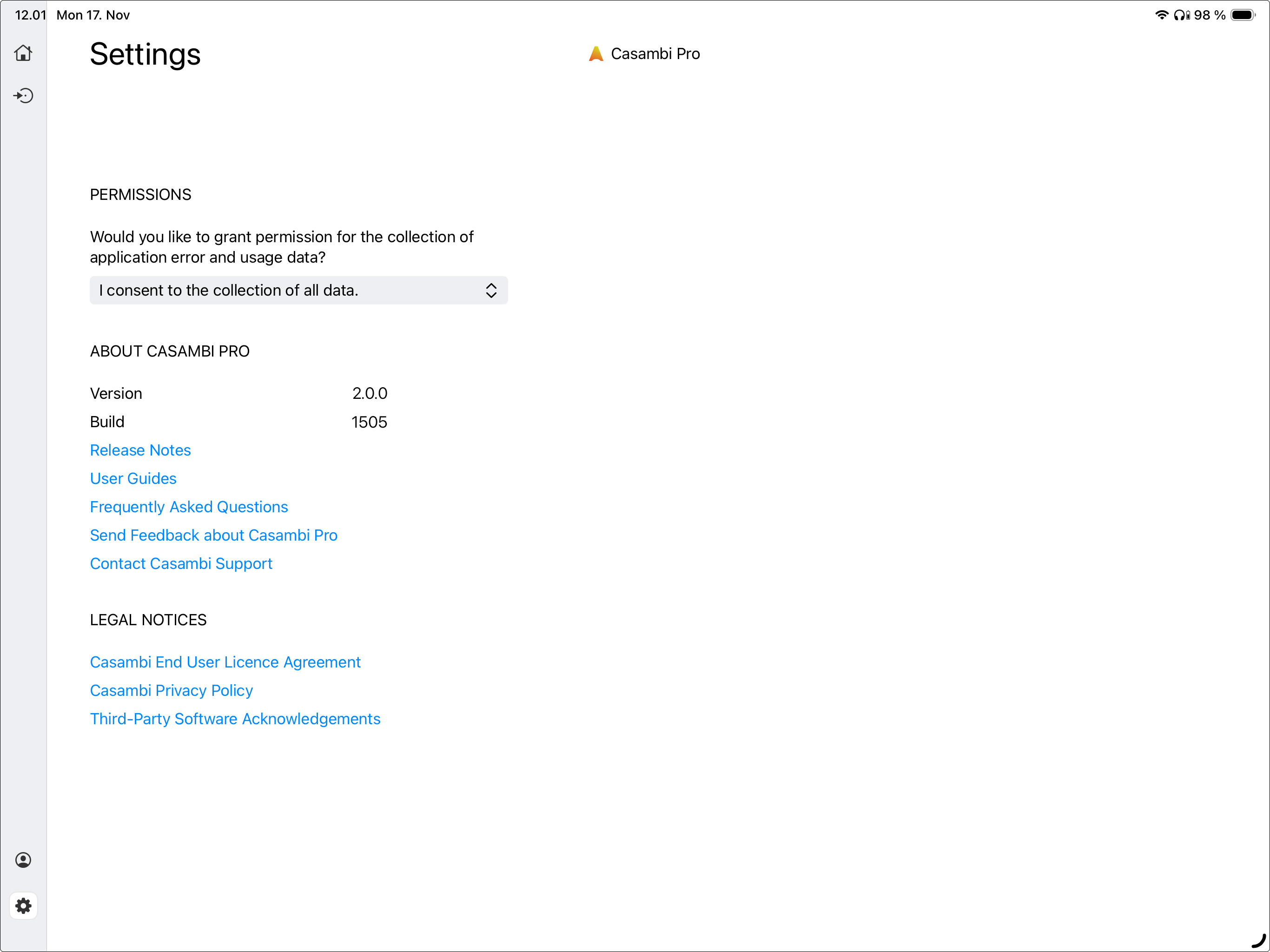
All application level settings are collected into the Settings view. Here is also a collection of links to Casambi Pro online resources.
In some Casambi Pro releases, this view can include access to use some early BETA Preview features, which will be displayed under a separate “Beta Features” title. These options may later be added as permanent features of Casambi Pro if they prove to be useful.
Windows
iPad
Main workspace
The main workspace is quite similar in both Windows and iOS.
Windows
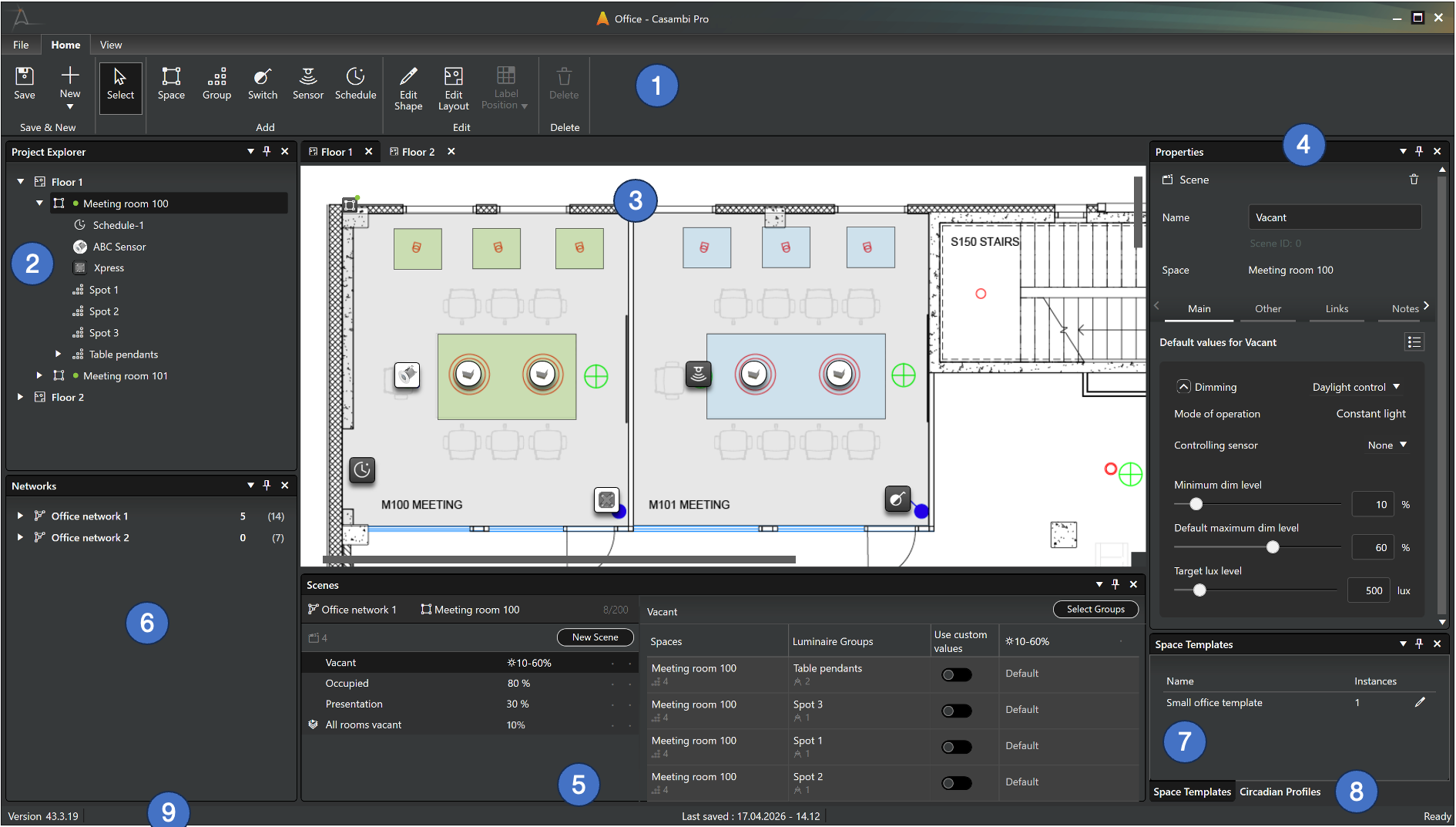
- Top ribbon, with menu options
- File: Navigation to the Backstage view.
- Home: Tools for creating and managing project contents.
- View: Tools for managing the workspace user interface and its colour theme.
- Project Explorer pane, which lists the layouts and elements placed in them.
- Layout view, where the floorplans and their overlay elements (spaces, luminaire groups, controllers and luminaires) are created and managed. Luminaires will appear in luminaire groups within layouts only after they have been paired to Pro networks on-site using the Casambi Pro iOS app.
- Properties pane, displays properties for the currently selected object.
- Scenes pane, displays scenes applied to the currently selected space. This pane appears empty if no space or any element in it is selected.
- Network list, shows networks which have been created for the current project.
- Space templates pane, shows space templates created in the project.
- Circadian profiles pane, lists all circadian profiles created in the project
- Bottom bar, displays the app version number, last save time and transient status information e.g. while saving the project
Each pane can be
- Closed and reopened
- Moved around the window
- Resized
- Stacked together with other panes
- Pinned to the sides of the window
- Detached to float outside the Casambi Pro window
You can restore the default pane arrangement using the Reset Views option in the View ribbon. This is particularly useful if you have detached panes into independent windows or moved them to a second display and wish to revert the interface to its original state.
If the workspace layout Is changed by the user, it will be remembered the next time the app is opened.
iPad
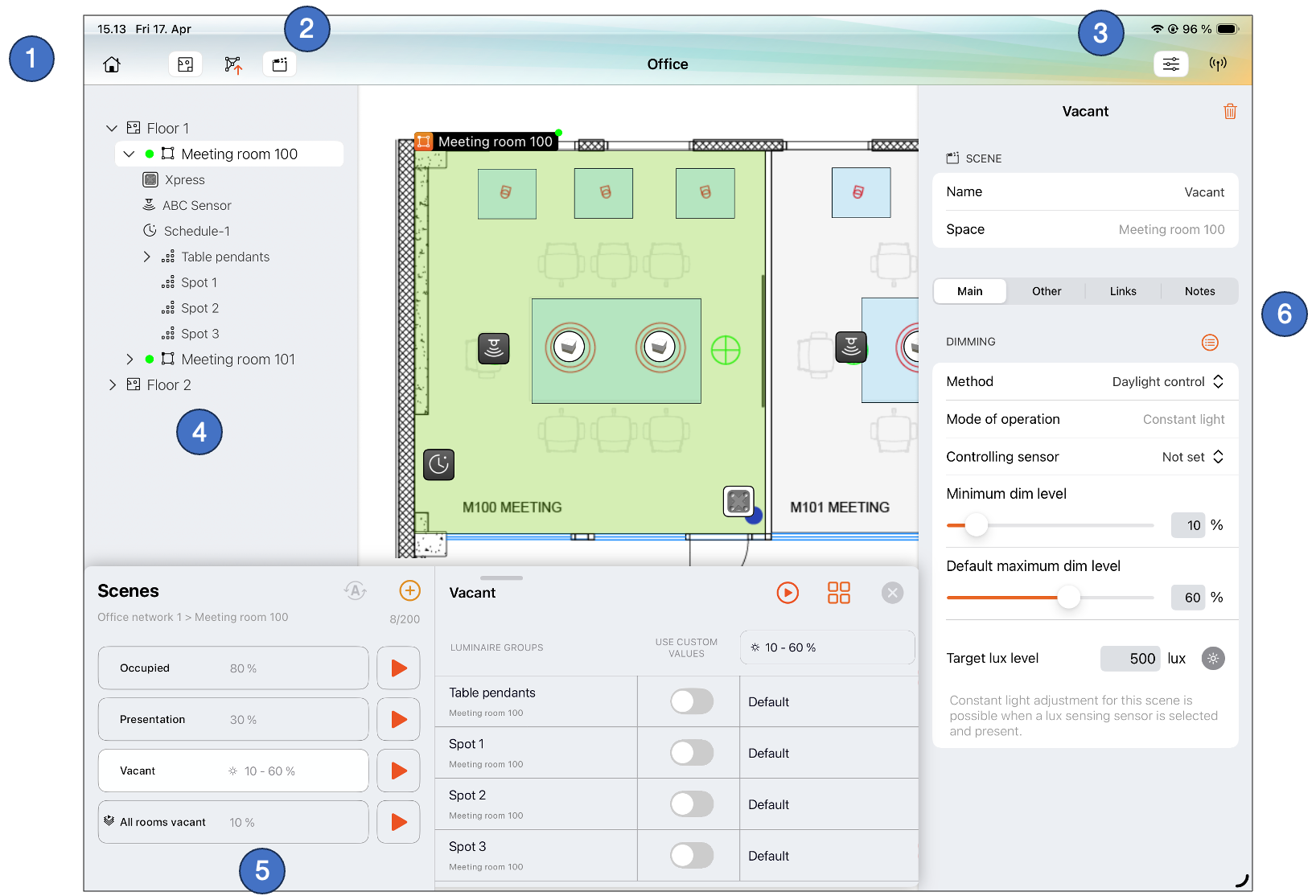
- Home button for closing the project and navigating to Backstage
- Buttons for toggling visibility of the Project Explorer, Networks list and Scenes panes.
- Buttons for toggling visibility of the Property Pane and Nearby Devices pane.
- Left side pane shows either the Project Explorer or the Network list
- Scenes for the currently selected space
- Properties for the currently selected element (in the example image, a scene is selected)
- The app works in both landscape and portrait orientations
- The app follows the system colour theme (light/dark)
- The Scenes pane shows the scene list and luminaire group list either as separate lists or together side by side, depending on used iPad's screen size. The sample picture above is from an iPad with 12,9 inch screen.
- In iOS, the app does not have separate panes for Space Templates or Circadian profiles, as the templates or profiles cannot be created or changed on Pro for iOS.
- On iPad, the Casambi Pro can be used with a mouse and a keyboard if those are available
- The user interface is the same on an iPhone.
General notes about the user interface
Following notes are valid as of the May 2026 release. Casambi Pro is constantly evolving with regular updates, so it is highly recommended to read the Release Notes for each release to check the latest changes in the applications.
- Free text notes can be added to any element in the project, such as layout, network, space, luminaire group, controller, scene, etc. This can be done in both Windows and iOS. The notes are included in the exportable project documentation.
- Deleting objects can be done with several methods. First, select an object and then
- Click the trash can icon in selected object’s property pane
- Click the trash can icon in the Home ribbon (Windows only)
- Right-click object and select Delete in the context menu (Windows only)
- Click Delete key in the keyboard (Windows only)
When deleting an object, a confirmation message will be displayed (except if the user Is deleting an empty space).
Objects which contain real paired devices cannot be deleted before the paired devices have been unpaired from the network.
- In Casambi Pro for Windows, most objects have a context menu accessible via right-clicking the mouse.
- In iOS, only paired luminaires have a context menu, providing the Identify command.
- Limitations in Casambi Pro user interface:
- There is no Undo feature.
- Projects cannot be reverted to previously saved version.
- iOS version’s user interface has not been optimized for the iPhone, thus the user experience on the phone is not always optimal.