Project creation
Creating a new project
New projects are created in the Backstage view of Casambi Pro for Windows. Note that projects cannot be created using the iOS version of Pro.
Clicking the "New…" tab in the Backstage view opens a dialog to enter the project name and set the time zone. The project name can be updated later within the project details view.
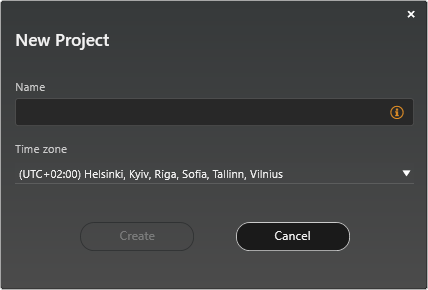 ]
]
Projects can be created only with the Windows version of Casambi Pro.
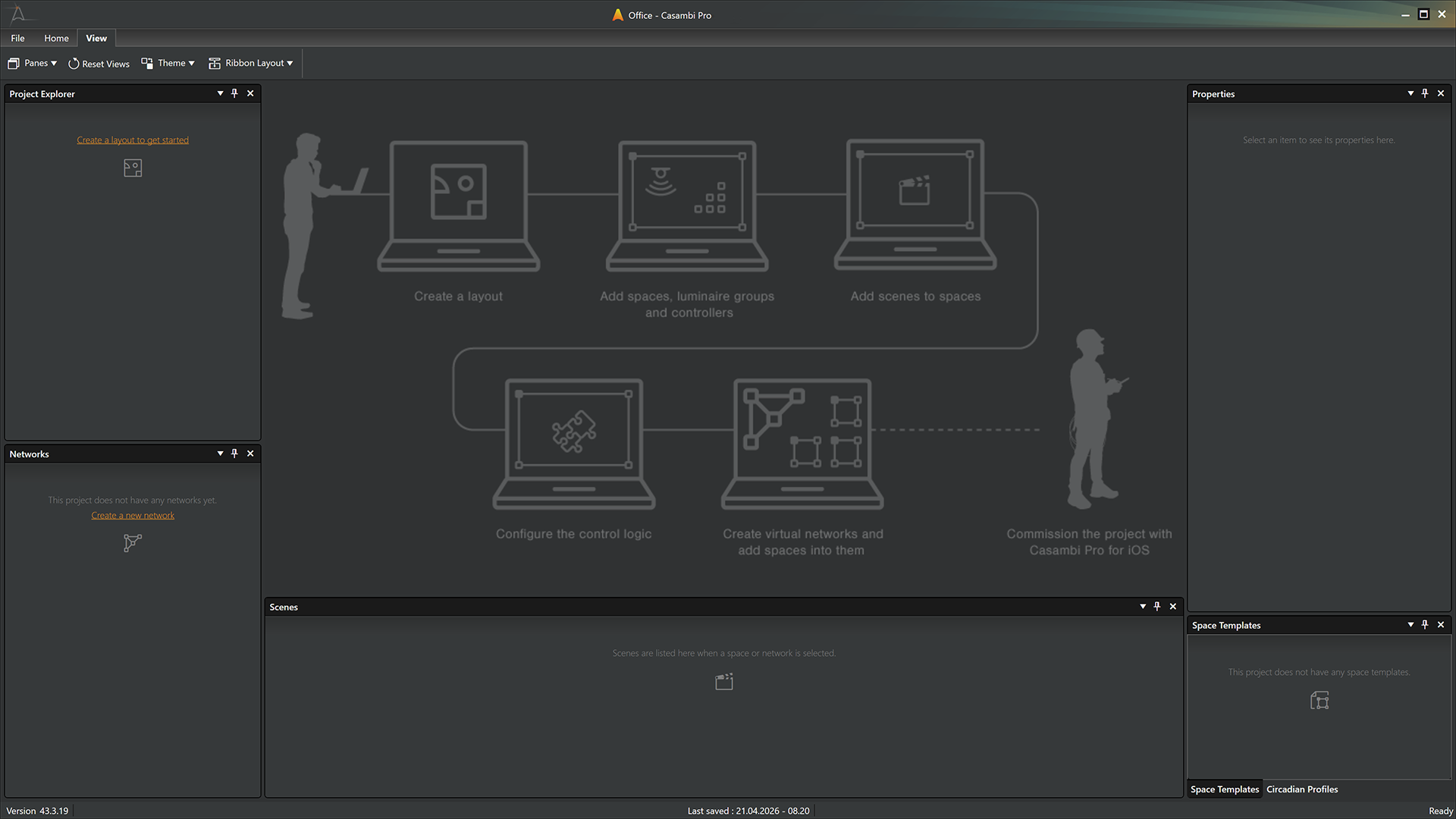
Once the project is created, the main workspace opens. Since a new project is initially empty, the interface displays helpful guidance text to help you get started.
Project Information
When a project is open, you can access its detailed information in the Backstage view by clicking the Project tab. This view is organized into three sub-tabs: Details, Location, and Members.
- The detailed project information is not displayed in Pro for iOS.
- The project name is mandatory, and it can be changed in the Project Information view.
- The project information is included in exported project documentation.
Details
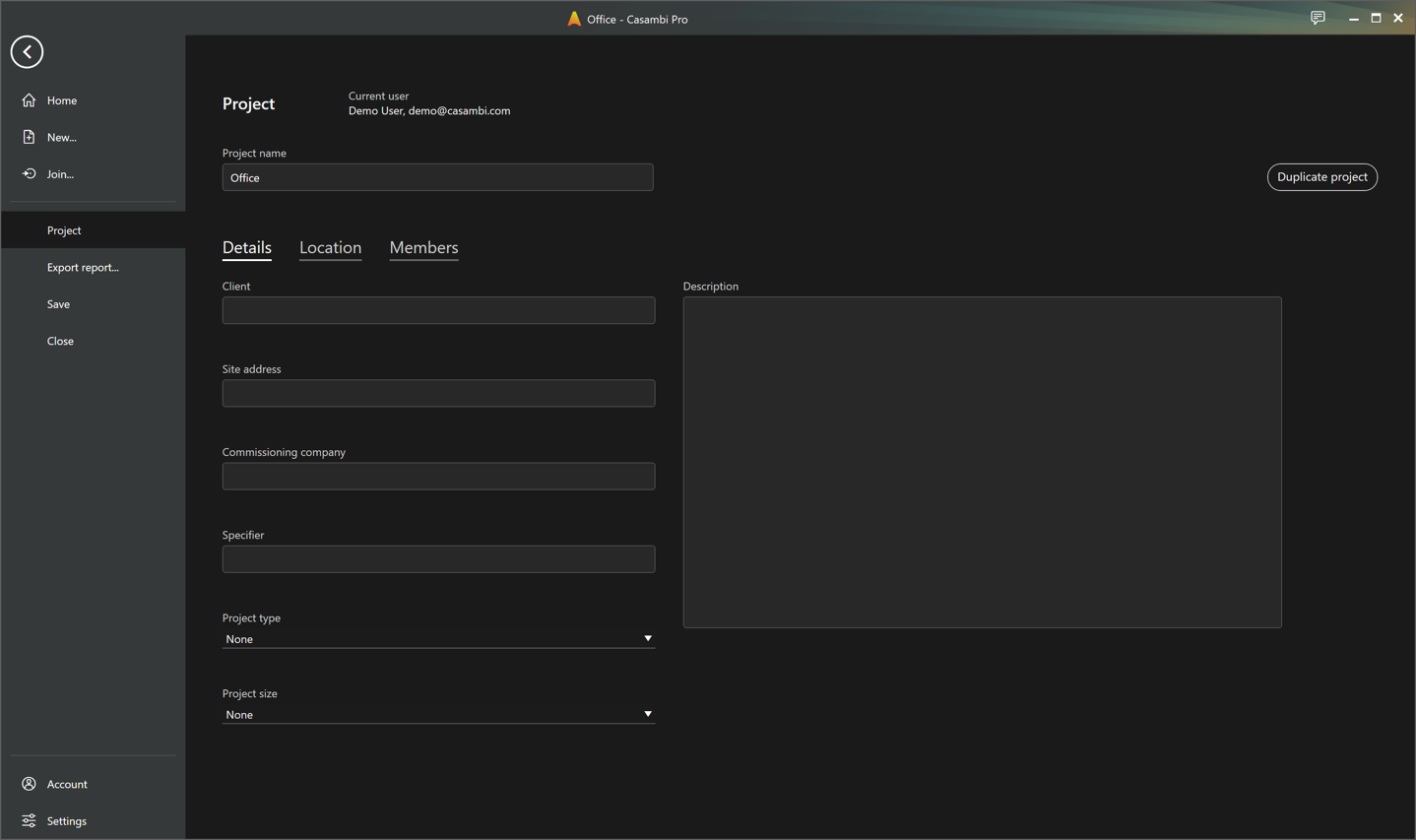
The details tab contains a collection of general project metadata items, including:
- Client
- Site address
- Commissioning company
- Specifier
- Project type
- Project size
- Description (free text field)
This view also displays information about the current user and includes a button to duplicate the currently open project.
Location
Project location and time zone can be set in the Location tab.
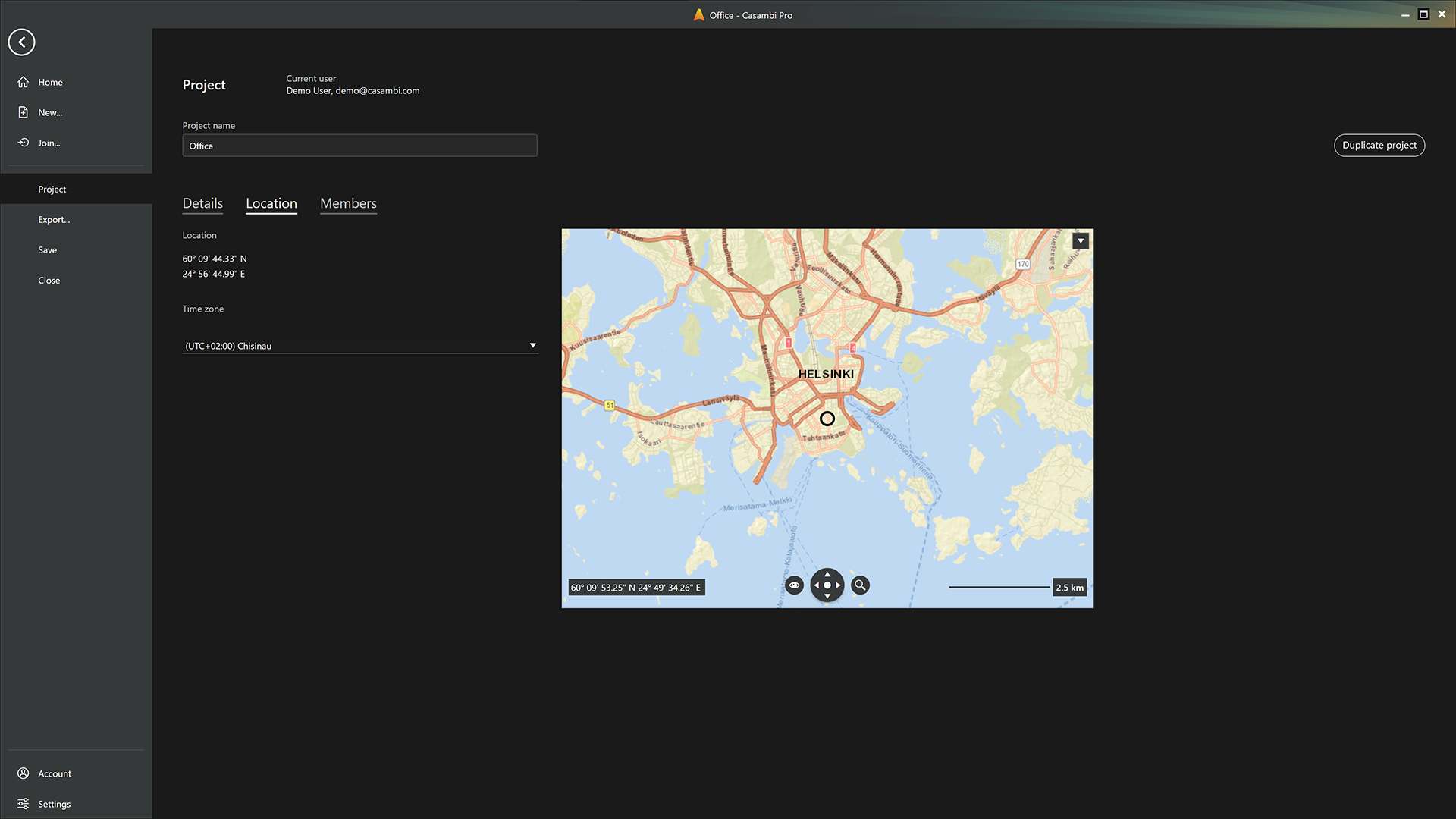
- Location is set by finding the correct place in the map and clicking at the right coordinate.
- Time zone can be selected from the drop-down list.