Editing luminaire groups
Editing groups in the layout
In Casambi Pro for Windows, the group shapes can be edited in the layout. Adding or editing spaces or luminaire groups appearance in the layout is not possible in the iOS version.
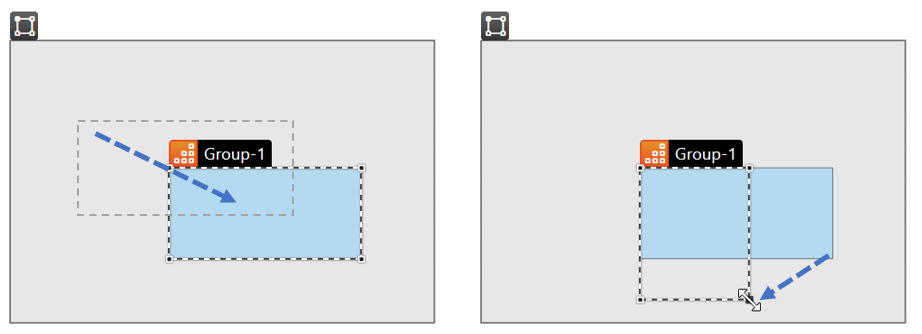
Moving a group
- Select the group you want to move
- Press left mouse button down and drag the group to new location.
- With Ctrl + click you can select multiple groups in the focused space
- Groups can be moved also with keyboard arrow keys. One key press moves the element 1 unit, Shift + press 10 units.
Resizing a group
- Select the group you want to resize
- Move the mouse cursor over group’s corner point or side → Mouse cursor changes to two-headed arrow.
- Drag the corner point or shape side to resize the group.
The Edit Shape tool
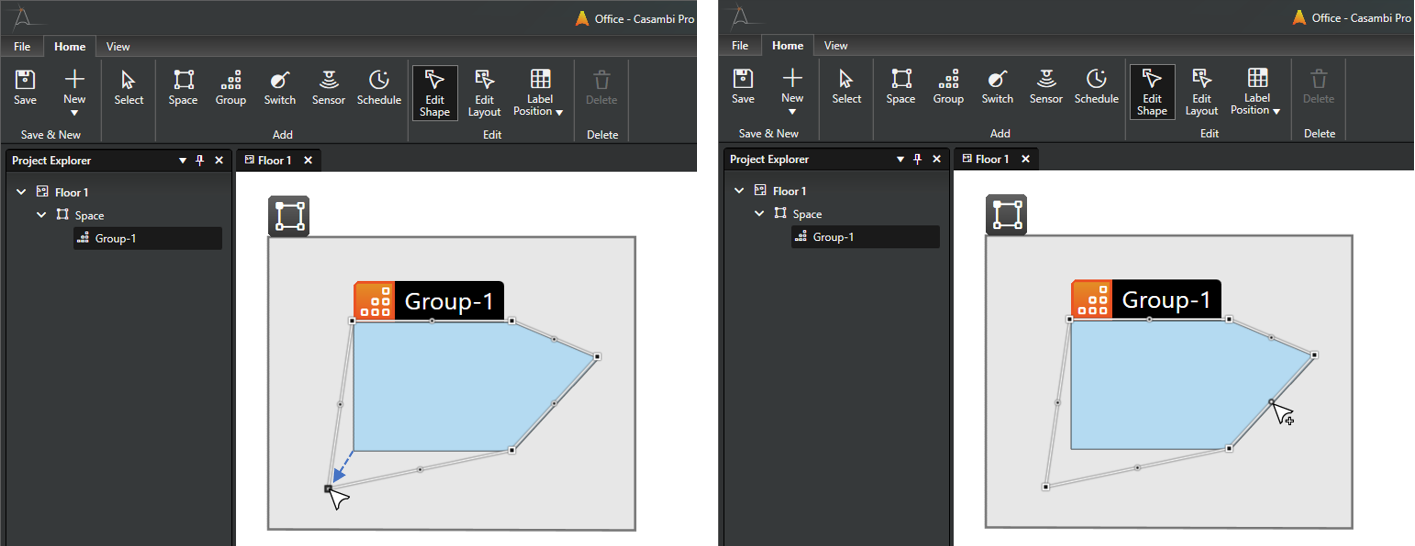
The Edit Shape tool in the Home ribbon can be used to edit space and luminaire group shapes in the layout. The tool can be accessed also by clicking the E key in the keyboard.
Moving a corner point
- Select the group you want to edit
- Select the Edit Shape tool
- Click and drag a corner point
Creating a new corner point
- Select the group you want to edit
- Select the Edit Shape tool
- Click and drag the middle point of a shape
Deleting a corner point
- With the Edit Shape tool, click a corner point to select it.
- Delete the corner point by
- Clicking the Delete button in the Home ribbon or
- Hit the Delete key on your keyboard
Luminaire group properties
- Windows
- iOS
Windows
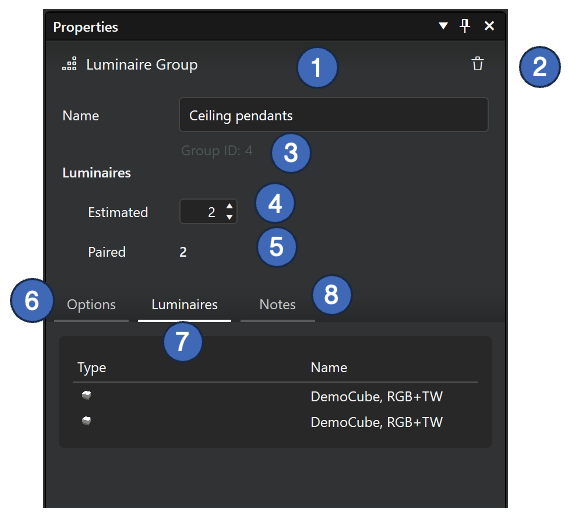
When a luminaire group is selected, its properties are displayed in the Properties pane.
- Name of the group
- The name is mandatory and can be edited in both the Windows and iOS apps.
- Delete button
- Allows for the removal of the group. A group can only be deleted if it contains no paired physical devices.
- Group ID
- The unique identifier for the group within the system.
- Estimated number of luminaires
- The planned number of luminaires to be paired to this group.
- These values are used for network capacity planning and tracking commissioning progress; they do not affect functional logic.
- Number of paired luminaires
- The current count of physical luminaires paired to the group.
- This value updates automatically as devices are paired or unpaired.
- Options tab
- Setting for startup state for behaiour when power is restored (Luminaire default / Last state).
- Luminaires tab
- Lists all physical luminaires currently paired to the group.
- Click a luminaire row to view its specific properties.
- Notes tab
- A text input field for adding internal documentation or specific instructions for the group.
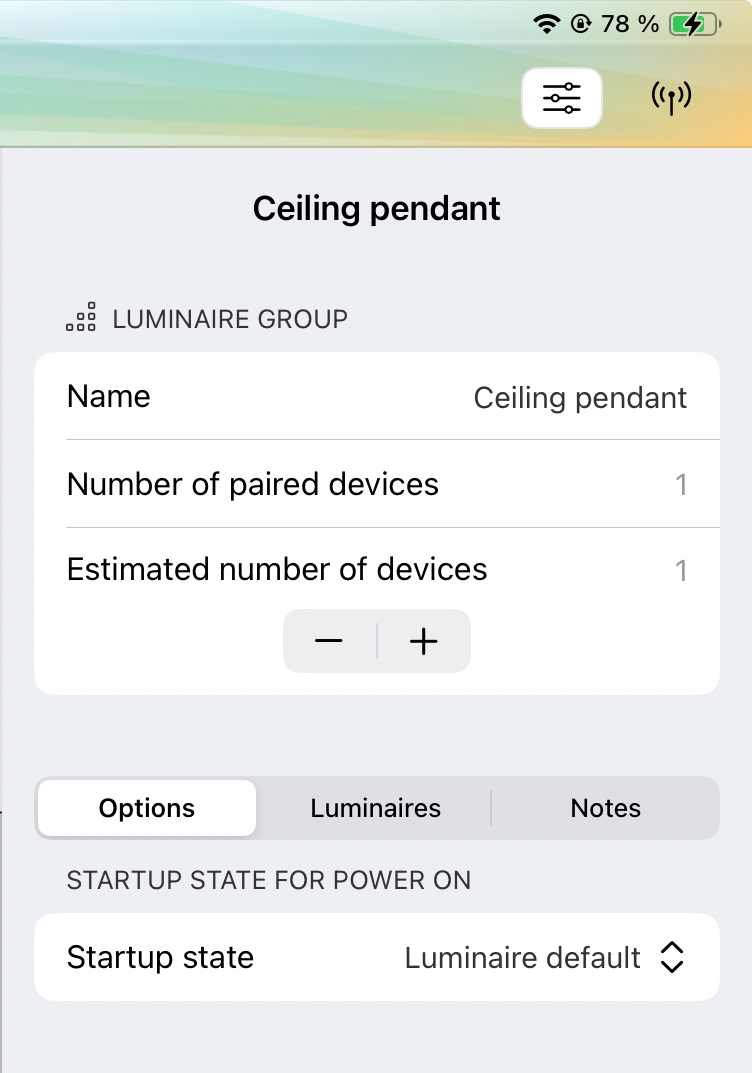
iPad
The iOS app displays the same luminaire group properties as Casambi Pro for Windows, with the exception of the Group ID, which is only visible in the Windows version.