Creating a space
Spaces can be created or modified only in Casambi pro for Windows.
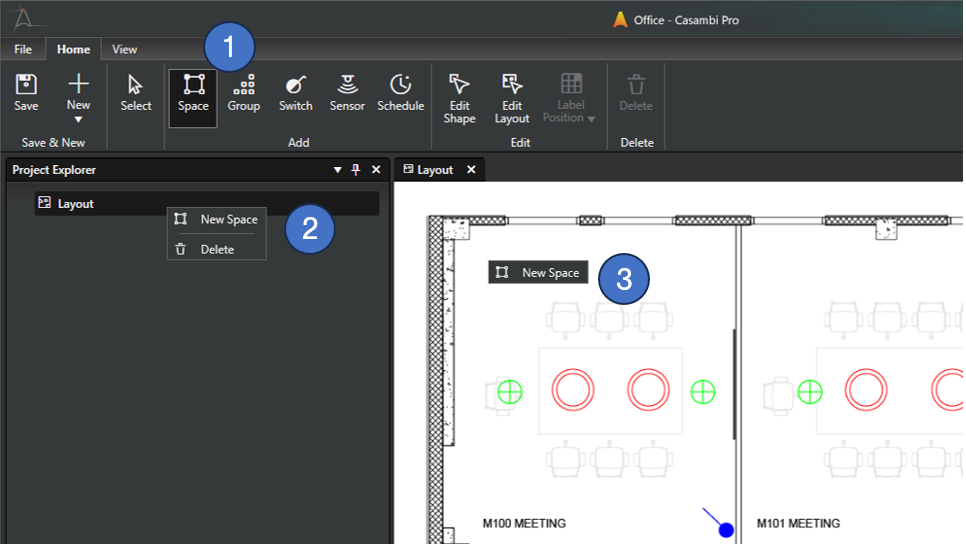 Methods for creating a new space
- Click on the Space tool icon button in the Home ribbon and use it to draw a space in canvas, or
- Right-click the layout row in Project Explorer pane and select New Space command, or
- Right-click over the layout in the layout view and select New Space command.
When spaces are created using the context menu commands, spaces will be created with default shape and size.
The Space Tool
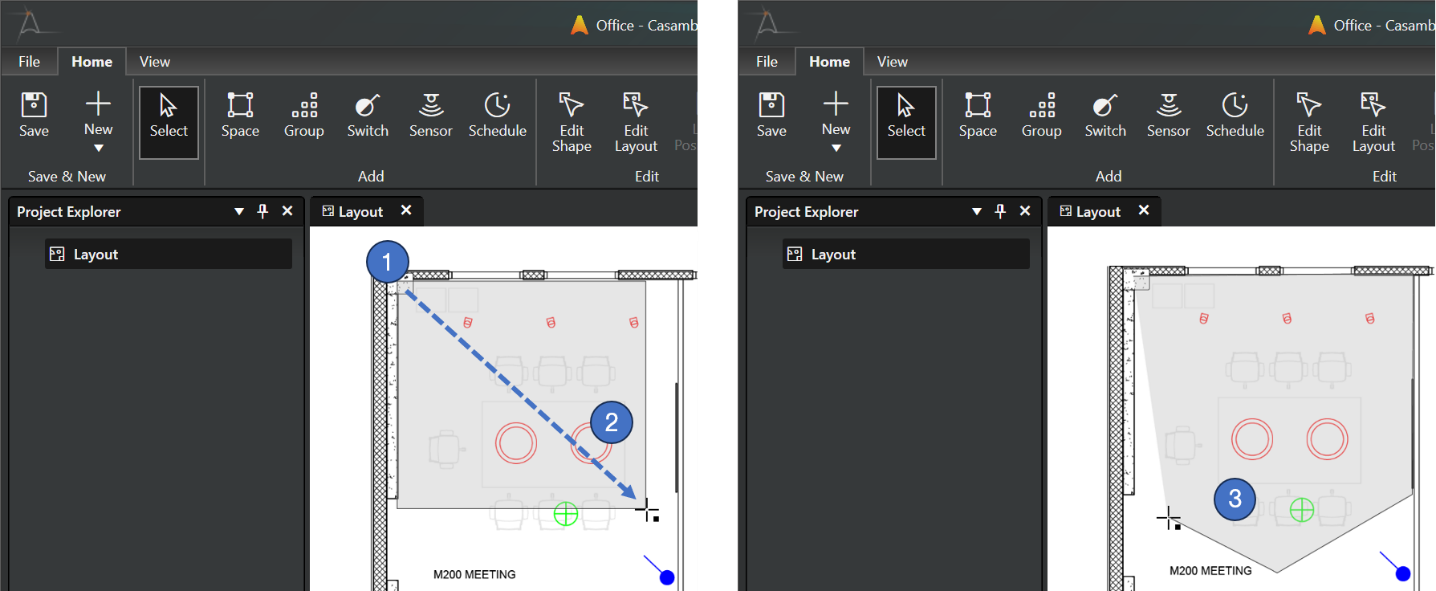 The space tool can be used for drawing spaces on the layout in three ways:
- Click somewhere on the layout
- Space is created with default size
- Space naming dialog is shown (New Space popup, see below)
- Press down the left mouse button and drag
- Space is created as a rectangle, user can adjust its size and shape
- When the left mouse button is released, the space naming dialog is shown
- Keep CTRL button pressed and click in space's corner points
- Each click creates a new corner point.
- A space must have at least three corner points.
- After clicking the first corner point, the CTRL key can be released.
- If the CTRL button is pressed during creation of the corner points, the guides are not shown.
- If the CTRL button is released after first corner point click, the tool provides guidelines to help creating 45 and 90 degree corners between the sides of the polygon.
- The created polygon will be closed and completed when the starting point is clicked again. The space naming dialog will be displayed.
Use keyboard shortcut S to quickly change to the space tool. The space tool can be changed back to the standard Select tool by pressing the Esc key in the keyboard.
New Space Dialog
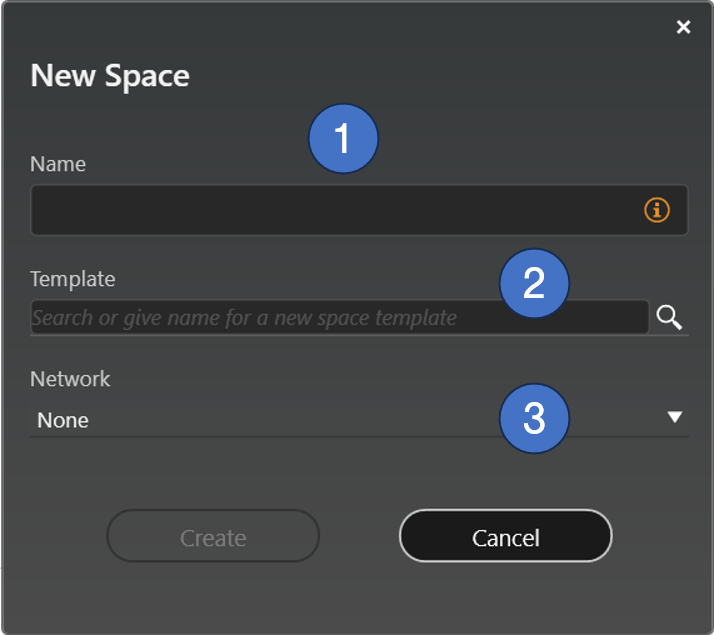
This dialog is displayed when a new space is added.
- Name for the space
- The name is mandatory.
- A space name must have at least one character. Other than that, there are no specific naming rules.
- Name does not have to be unique. However, some kind of systematic naming convention is recommended.
- Space template selection
- If the project has space templates, they are all listed here.
- If a template is selected, the new space will inherit its contents from the template.
- Template selection is not mandatory.
- If user wants to create spaces based on a template, the template selection must be done at the time the space is created. A space cannot be linked to a template afterwards.
- Network selection
- Each space must be attached to a network before any real devices can be paired to it.
- Network selection is not mandatory at the time space is created.
- Network selection can be changed in space's properties if there are no real devices paired in it.
Duplicating a space
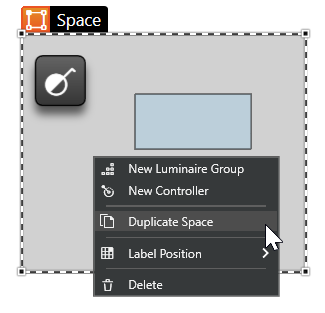
A space together with all of its contents can be duplicated in Casambi Pro for Windows by using the Duplicate Space command in space's context menu.
The context menu also allows user to add luminaire groups and controllers into the space, or to delete the space.
Spaces can be duplicated only in Pro for Windows.