Creating a space
Spaces can be created or modified only in Casambi pro for Windows.
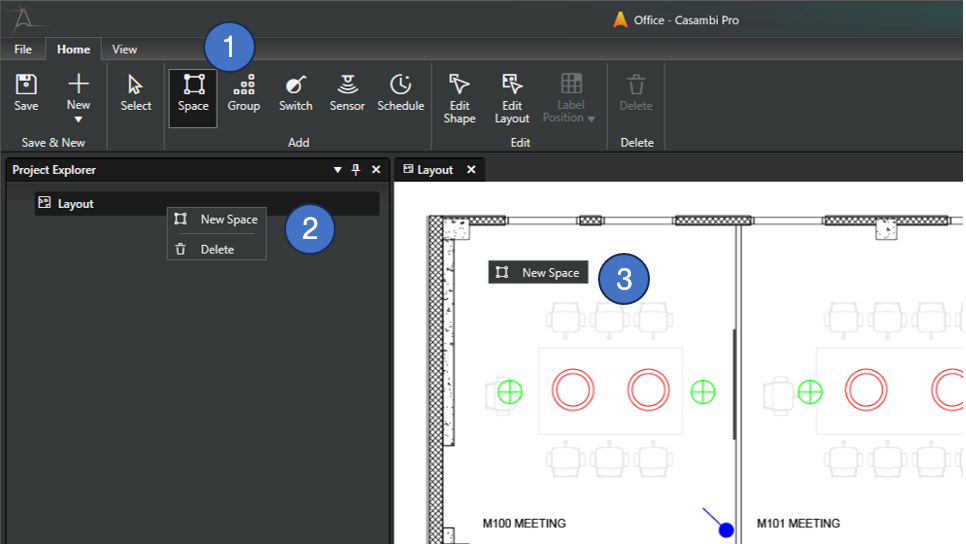
Methods for creating a new space
- Click on the Space tool icon button in the Home ribbon and use it to draw a space in canvas, or
- Right-click the layout row in Project Explorer pane and select New Space command, or
- Right-click over the layout in the layout view and select New Space command.
Using the context menu commands creates spaces with a pre-defined default shape and size.
Using the Space Tool
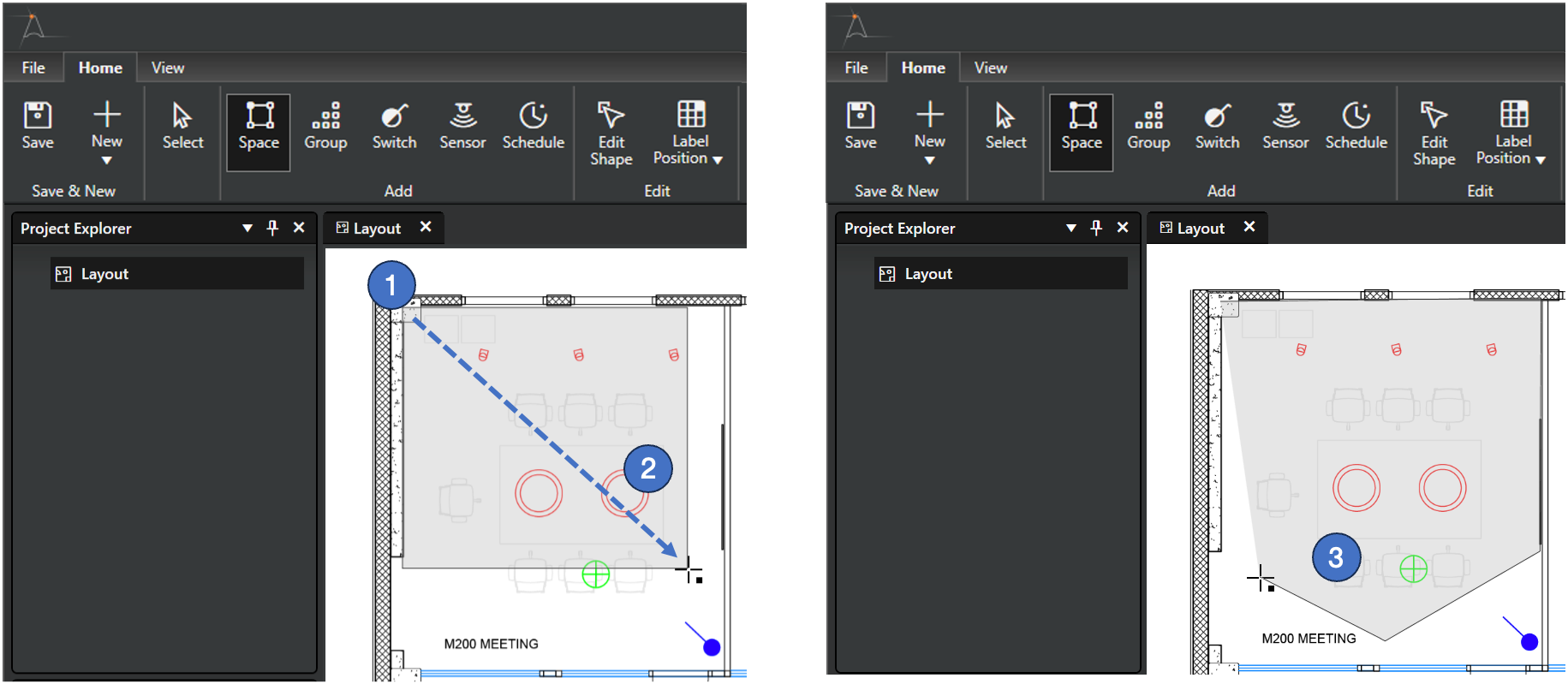
The Space tool allows you to define areas on the layout using three different methods. When the tool is active, you can:
-
Quick Create (Click)
- Action: Click anywhere on the layout.
- Result: A space is created with default dimensions, and the New Space naming dialog appears.
-
Rectangular Draw (Click and Drag)
- Action: Click and hold the left mouse button, then drag to the desired size.
- Result: The space is drawn as a rectangle. Releasing the mouse button opens the New Space naming dialog.
-
Custom Polygon (Ctrl + Click)
- Action: Hold Ctrl and click to set the first corner point. Each subsequent click adds a new corner.
- Requirements: A space must have at least three corner points.
- Alignment guides: If you release Ctrl after the first click, the tool provides alignment guides for precise 45° and 90° angles.
- If you keep Ctrl held down, these guides are hidden for free-form placement.
- Completion: Click the starting point again to close the polygon. The New Space naming dialog will then be displayed.
Use keyboard shortcut S to quickly change to the space tool. The space tool can be changed back to the standard Select tool by pressing the Esc key in the keyboard.
New Space Dialog
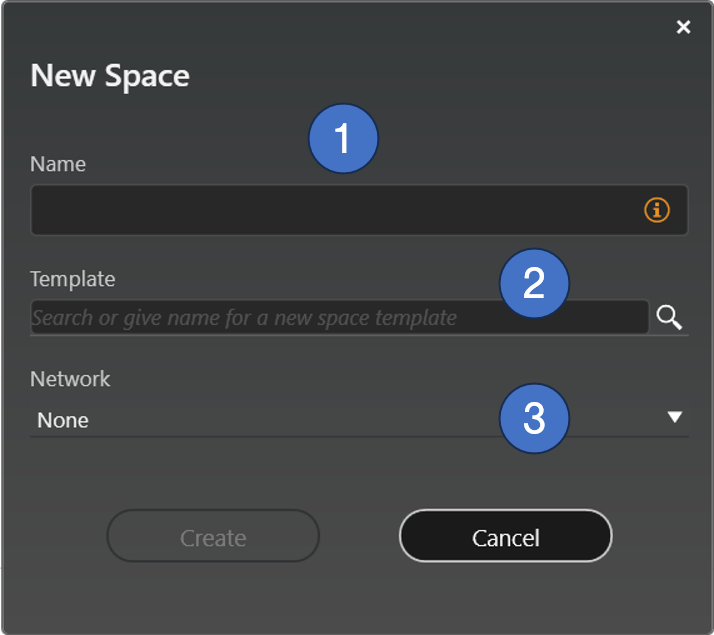
This dialog is displayed when a new space is added.
- Name for the space
- The name is mandatory.
- A space name must have at least one character. Other than that, there are no specific naming rules.
- Name does not have to be unique. However, some kind of systematic naming convention is recommended.
- Space template selection
- If the project has space templates, they are all listed here.
- If a template is selected, the new space will inherit its contents from the template.
- Template selection is not mandatory.
- If user wants to create spaces based on a template, the template selection must be done at the time the space is created. A space cannot be linked to a template afterwards.
- Network selection
- Each space must be attached to a network before any real devices can be paired to it.
- Network selection is not mandatory at the time space is created.
- Network selection can be changed in space's properties if there are no physical devices paired in it.
Duplicating a space
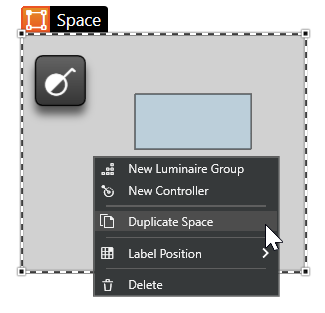
A space together with all of its contents can be duplicated in Casambi Pro for Windows by using the Duplicate Space command in space's context menu.
The context menu also allows user to add luminaire groups and controllers into the space, or to delete the space.
Spaces can be duplicated only in Casambi Pro for Windows.