Creating a virtual controller
Methods for creating a new controller
Virtual controller placeholders can be created only in Casambi pro for Windows.
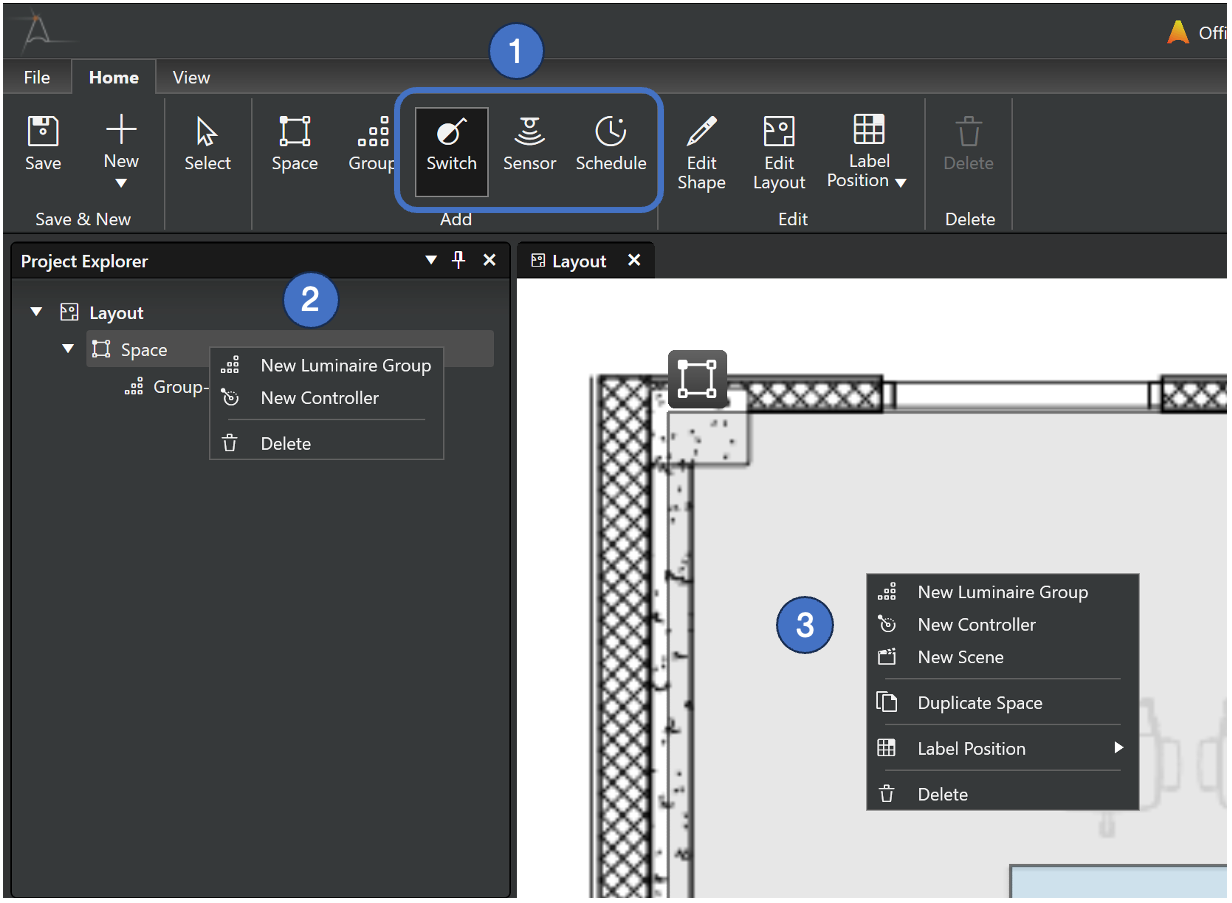
You can create a new controller using one of the following methods:
- Home Ribbon Tools: Click a controller icon in the Home ribbon to activate the tool, then click inside a space to place the controller.
- Shortcuts: Use
W(Switch),R(Sensor), orT(Schedule) to quickly activate these tools.
- Project Explorer: Right-click a space in the Project Explorer pane and select the New Controller command.
- Layout Context Menu: Right-click directly over a space in the layout view and select the New Controller command.
New Controller dialog
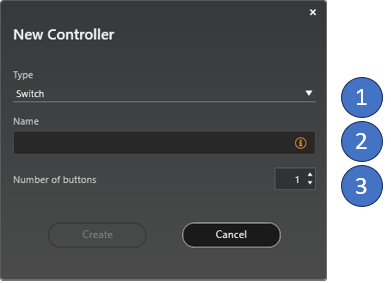
When a controller is created using a context menu command, a New Controller dialog is displayed:
-
Controller type selection.
-
Name of the controller (mandatory).
-
If the switch controller type is selected, number of switch button can be set here. By default, a switch has one button.
Controller tools in the Home ribbon
The three controller icons in the Home ribbon allow you to quickly add multiple controllers to your spaces. When using these tools, the New Controller dialog is not displayed; instead, placeholders are created immediately with default settings.
- Virtual controllers can only be created in Casambi Pro for Windows. However, they can be edited in both the Windows and iOS versions of the app.
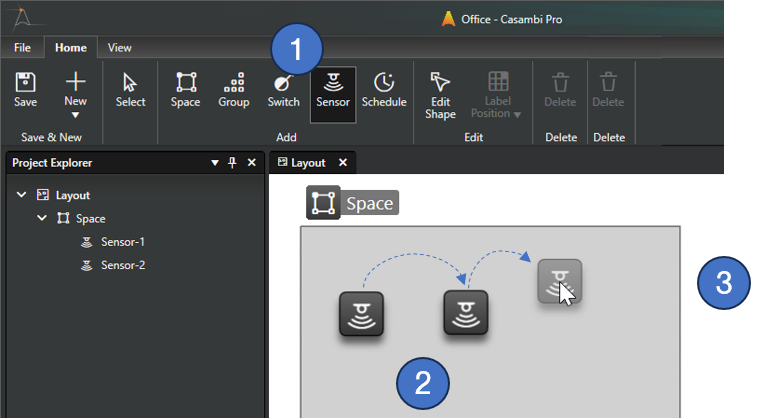
Using the Controller Tools
- Activate the Tool: Select a controller icon from the Home ribbon or use the following keyboard shortcuts:
W: SwitchR: SensorT: Schedule
- Place Controllers: Click inside any space to create a virtual controller. A new placeholder is generated with every click and is named automatically.
- Deactivate the Tool: To return to the Select tool:
- Press the
EscorVkey on your keyboard. - Click the Select tool icon in the Home ribbon.
- Select any other tool from the ribbon to automatically dismiss the current controller tool.
- Press the