Switches
Switch properties
Windows
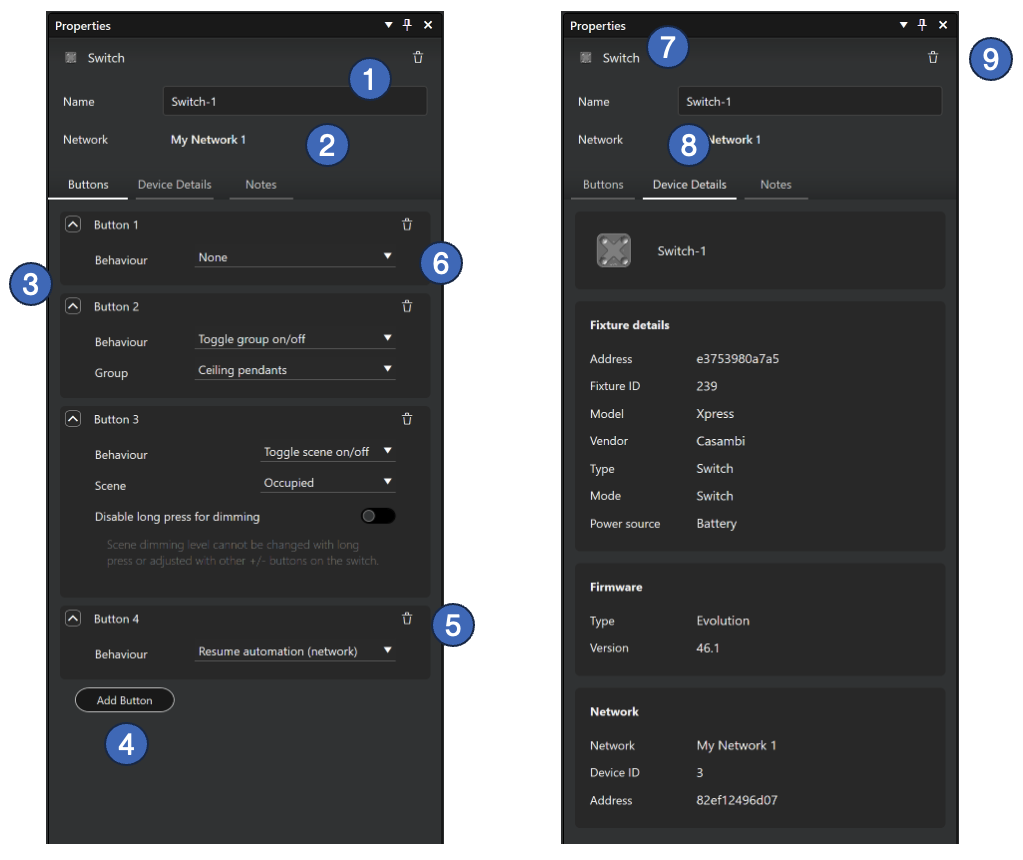
When a switch is selected in Casambi Pro for Windows, the following properties are displayed in the Properties pane:
- Name: The name of the switch (mandatory).
- Network: Displays the network assigned to the switch. A switch always inherits the network from its parent space.
- Button List: Displays all configured buttons for the switch. A switch can have between 1 and 8 buttons.
- Add Button: Use this button to add a new button to the list.
- Delete Button (Row): Click the trash can icon in a specific button row to remove it. A switch must always have at least one button.
- Behavior Selection: Each button is programmed by selecting a specific control behavior from the dropdown menu.
- Device Image: Once a physical switch is paired (replacing the virtual placeholder), the device’s actual product image replaces the standard switch icon.
- Device Details Tab: Details become available after pairing to show hardware-specific information of the physical device.
- Delete Switch: Click the trash can icon at the top-right of the Properties pane to remove the switch from the layout.
A physical paired switch must be unpaired before it can be deleted from a project. If a switch is deleted without unpairing, the network will continue to recognize the device as a network node, which may cause configuration conflicts.
iPad and iPhone
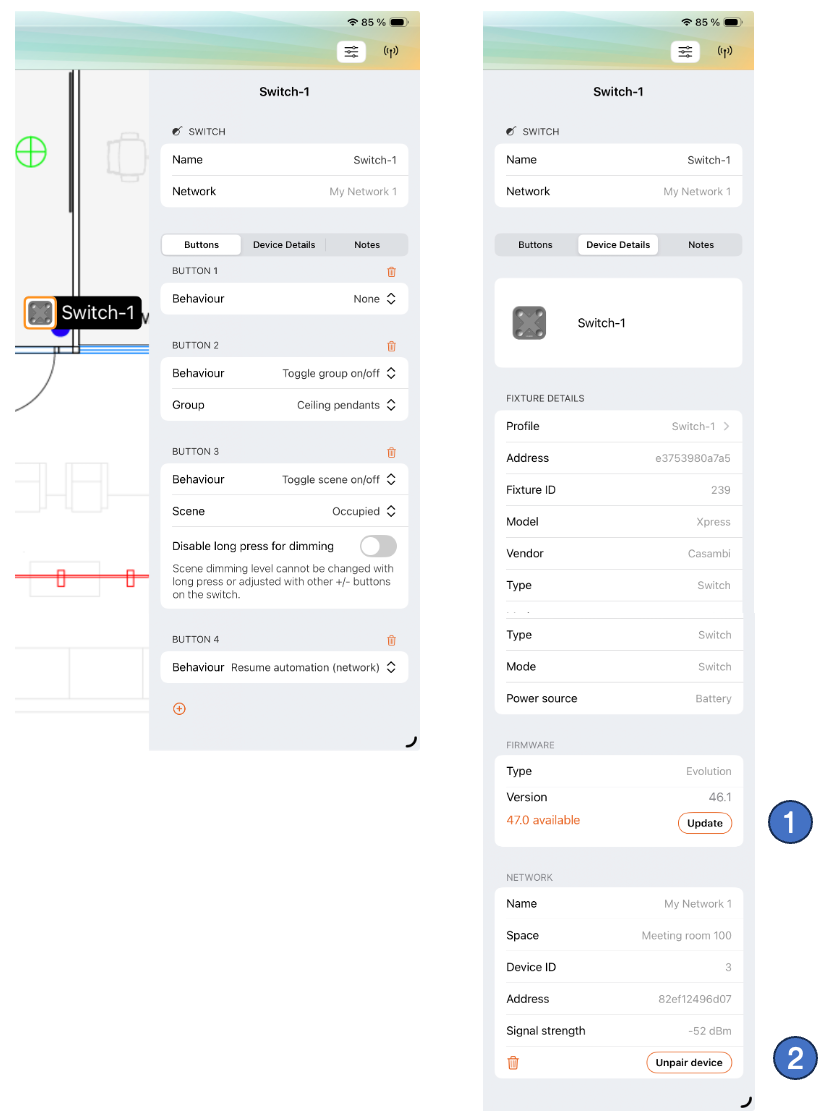
The iOS app provides additional hardware-level controls and maintenance options for switches that are not available in the Windows version:
- Firmware Updates: You can update the device firmware if a newer version is available. For detailed instructions, see Changing device fixture profile.
- Device Unpairing: Switches can be removed from the network directly from the properties pane. For more information, see Unpairing a device from the network.
Switch button behaviours
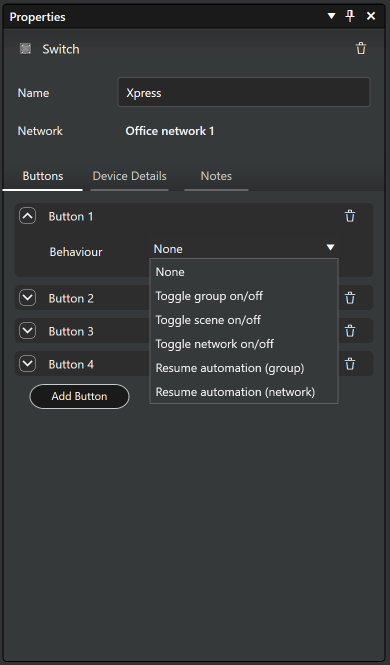
Each switch button is configured by selecting a behaviour from the available options. Some behaviours include additional configuration settings:
-
None
- The button has no assigned action; clicking it results in no change.
-
Toggle group on/off
- Toggles a specific luminaire group on/off within the same space.
- Use the Group dropdown menu to select from all available groups in the current space.
-
Toggle scene on/off
- Toggles a specific scene on/off within the same space.
- Use the Scene dropdown menu to select from all available scenes in the current space.
- Disable long press for dimming: If enabled, the scene's dimming level cannot be adjusted via a long press or secondary +/- buttons (e.g., on a Casambi Xpress switch).
-
Toggle network on/off
- Toggles all luminaires within the entire network on or off.
-
Resume automation in group
- Removes manual overrides from a selected group, returning it to its automated state.
- Selecting this adds a Group selection field to the button properties.
-
Resume automation in network
- Removes the manual control layer from the current control hierarchy for the entire network.