Editing luminaire groups
Editing groups in the layout
In Casambi Pro for Windows, the group shapes can be edited in the layout. Adding or editing spaces or luminaire groups appearance in the layout is not possible in the iOS version.
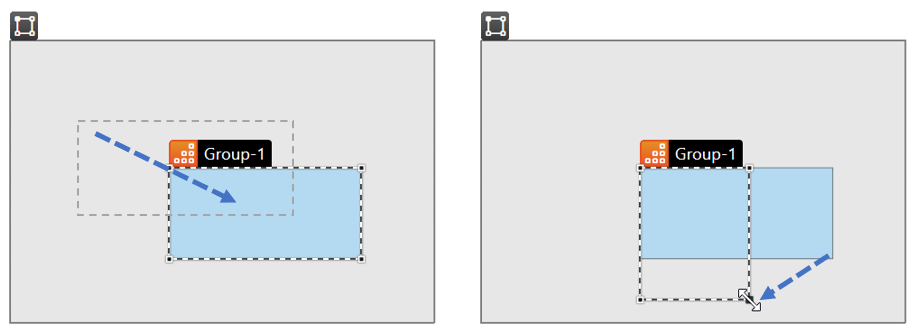
Moving a group
- Select the group you want to move
- Press left mouse button down and drag the group to new location.
- With Ctrl + click you can select multiple groups in the focused space
- Groups can be moved also with keyboard arrow keys. One key press moves the element 1 unit, Shift + press 10 units.
Resizing a group
- Select the group you want to resize
- Move the mouse cursor over group’s corner point or side → Mouse cursor changes to two-headed arrow.
- Drag the corner point or shape side to resize the group.
The Edit Shape tool
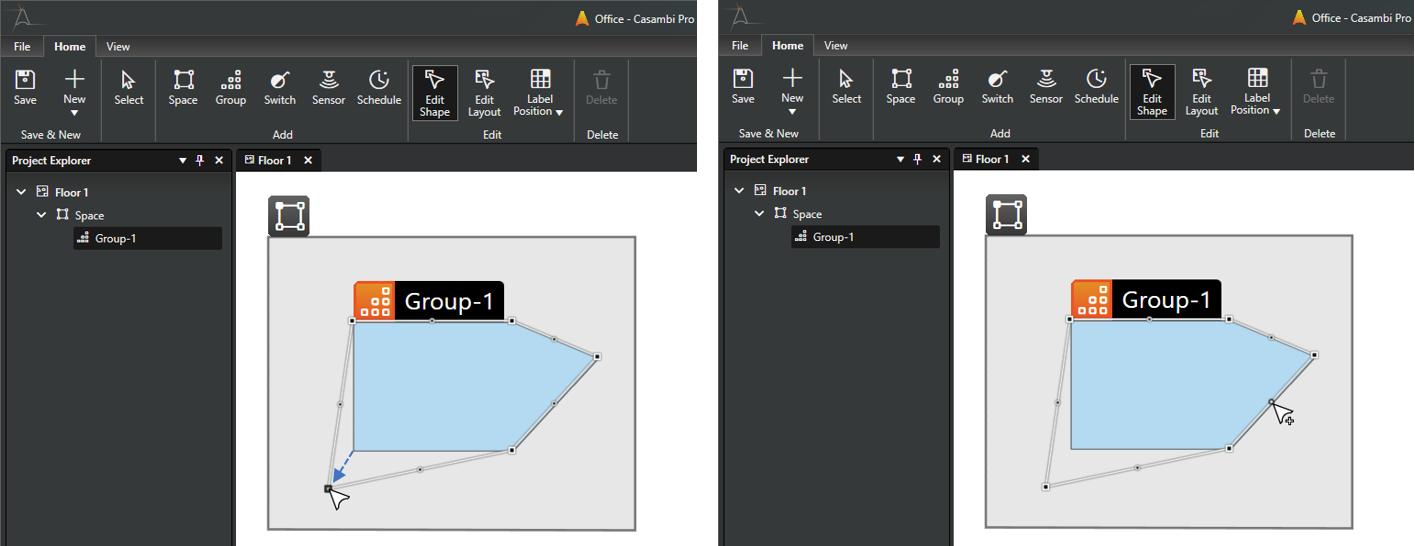
The Edit Shape tool in the Home ribbon can be used to edit space and luminaire group shapes in the layout. The tool can be accessed also by clicking the E key in the keyboard.
Moving a corner point
- Select the group you want to edit
- Select the Edit Shape tool
- Click and drag a corner point
Creating a new corner point
- Select the group you want to edit
- Select the Edit Shape tool
- Click and drag the middle point of a shape
Deleting a corner point
- With the Edit Shape tool, click a corner point to select it.
- Delete the corner point by
- Clicking the Delete button in the Home ribbon or
- Hit the Delete key on your keyboard
Luminaire group properties
- Windows
- iPad
Windows
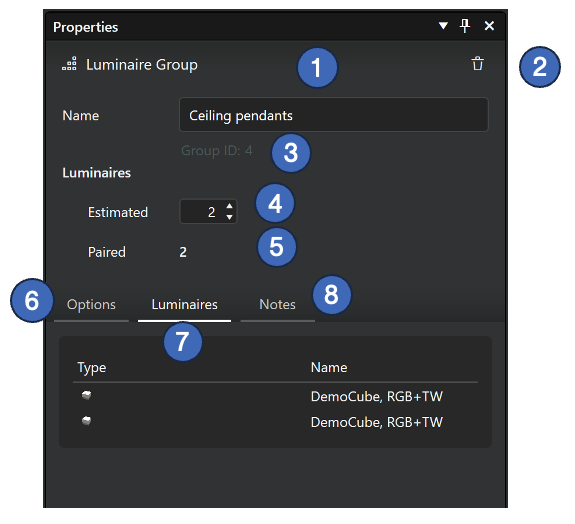
When a luminaire group is selected, its properties are displayed in the Properties pane.
- Name of the group
- Can be edited in both Windows and iOS apps
- The name is mandatory
- Delete button
- A group can be deleted if it does not contain any paired devices.
- Group ID
- Estimated number of luminaires
- Number of luminaires which will be paired to this group.
- The values are used for planning of networks. They have no other function.
- Number of paired luminaires
- Number of real paired luminaires.
- Values are automatically updated when a luminaire is paired to the group or unpaired from it.
- Options tab
- Setting for startup state for power on (Luminaire default / Last state)
- Luminaires tab
- Lists all paired luminaires in current group.
- Clicking a luminaire row in the list selects the luminaire and property pane shows its properties
- Clicking on a group row selects the group and displays its properties.
- Notes tab
- A text input field for adding notes to the current group.
iPad
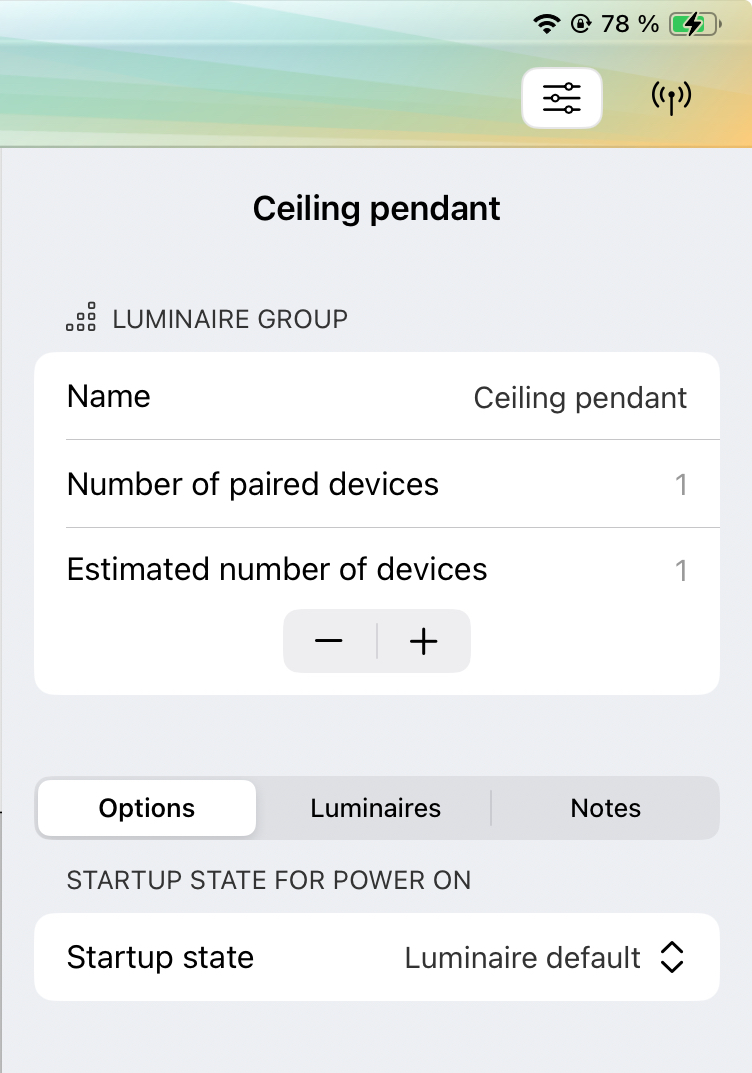
The iOS devices show the same luminaire group properties as Casambi Pro for Windows, excluding the Group ID.